Social media and sharing
Link your social profiles once and Ignite shows the icons wherever they belong. Share buttons let customers send a product or article to a friend in one tap.
Find these in the theme editor under Theme settings > Social media.
Add your social accounts
- Under Store social accounts, paste the full address of each profile, such as
https://www.instagram.com/yourstore. - Leave a network empty to hide its icon.
- Click Save.
Ignite has icons for Facebook, Instagram, YouTube, TikTok, X, Snapchat, Pinterest, Tumblr, Vimeo, WhatsApp, Threads and LinkedIn.
Where the icons appear
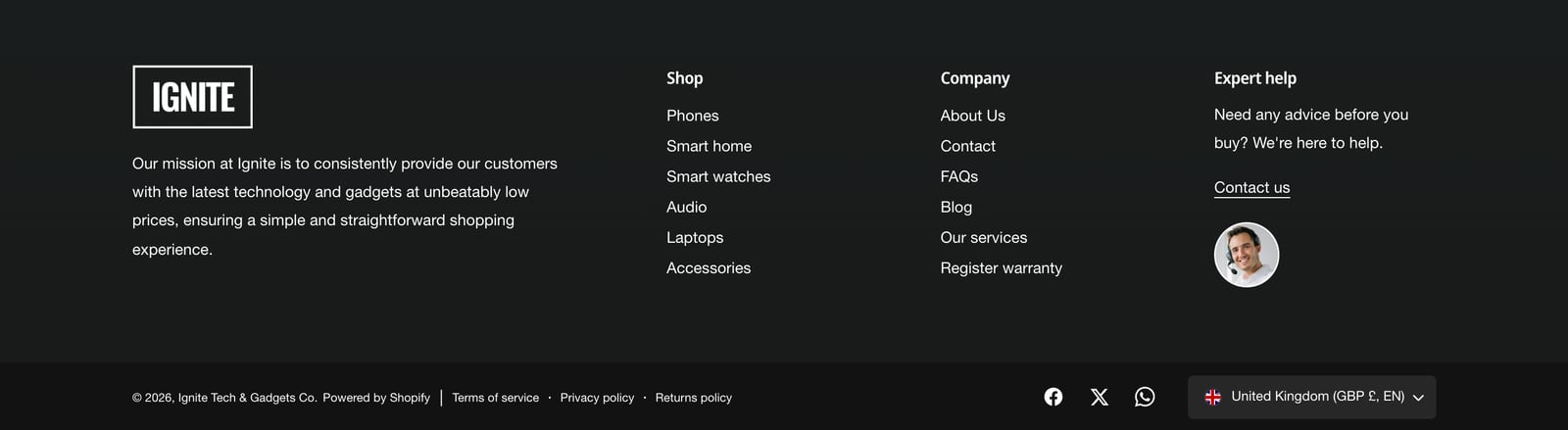
- Footer: in the bottom bar, when Show social media icons is on in the Footer section.
- Burger menu: at the bottom of the mobile menu.
- Email signup banner: when Show social media icons is on in that section.
A network that isn’t listed
Upload an image in Custom social icon and add its address in Custom link. Use a simple, single-color icon, ideally an SVG.
Share buttons
Share buttons appear on products, blogs and blog posts. Under Sharing icons, set each one to Off, Mobile, Desktop or Both.
| Button | Default |
|---|---|
| X | Both |
| Both | |
| Desktop | |
| Mobile | |
| Off | |
| Generic share button | Mobile |
The Generic share button opens the device’s own share menu where the browser supports it, so customers can share to any app they have, including Messages and email.
On the product page, the buttons appear where you place the Share block. See Product page.
Common questions
How do I add social media icons to my Shopify footer in Ignite?
Add your profile links in Theme settings > Social media, then make sure Show social media icons is on in the Footer section.
Which social networks does Ignite support?
Facebook, Instagram, YouTube, TikTok, X, Snapchat, Pinterest, Tumblr, Vimeo, WhatsApp, Threads and LinkedIn, plus one custom icon of your own.
How do I remove the share buttons from product pages?
Set each network under Sharing icons to Off, or remove the Share block from the product page.