Image hotspots
Hotspots turn a lifestyle photo into something customers can shop. Each marker opens a small popover with a product or a note, right where it appears in the picture.
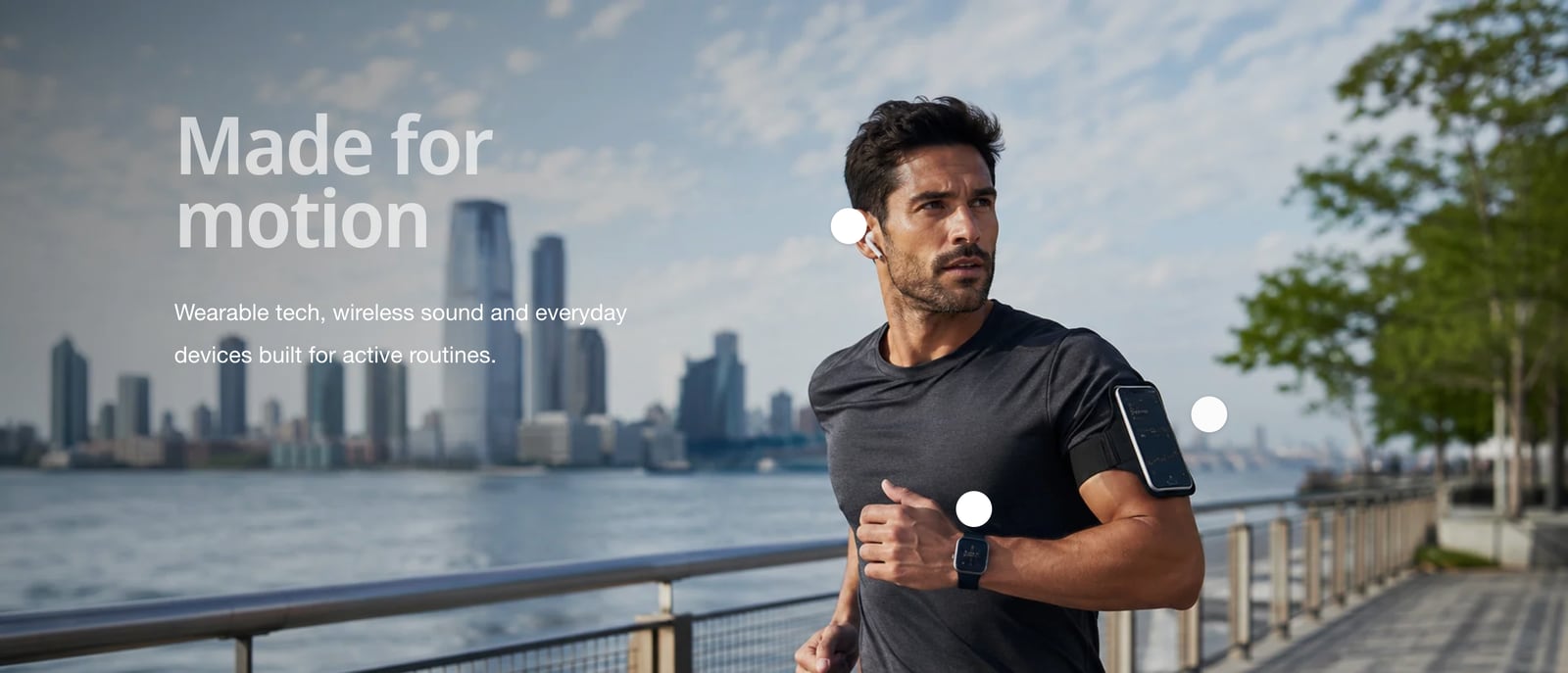
Add hotspots to an image
- In the theme editor, click Add section and choose Image hotspots.
- Choose an Image. A big, wide photo with a few clear products in it works best.
- Click Add block and choose Hotspot.
- Drag Horizontal position and Vertical position until the marker sits on the product. Both are percentages of the image, from 5% to 95%.
- Choose a Product, or type a Popover title and Popover content yourself.
- Repeat for each hotspot, then click Save.
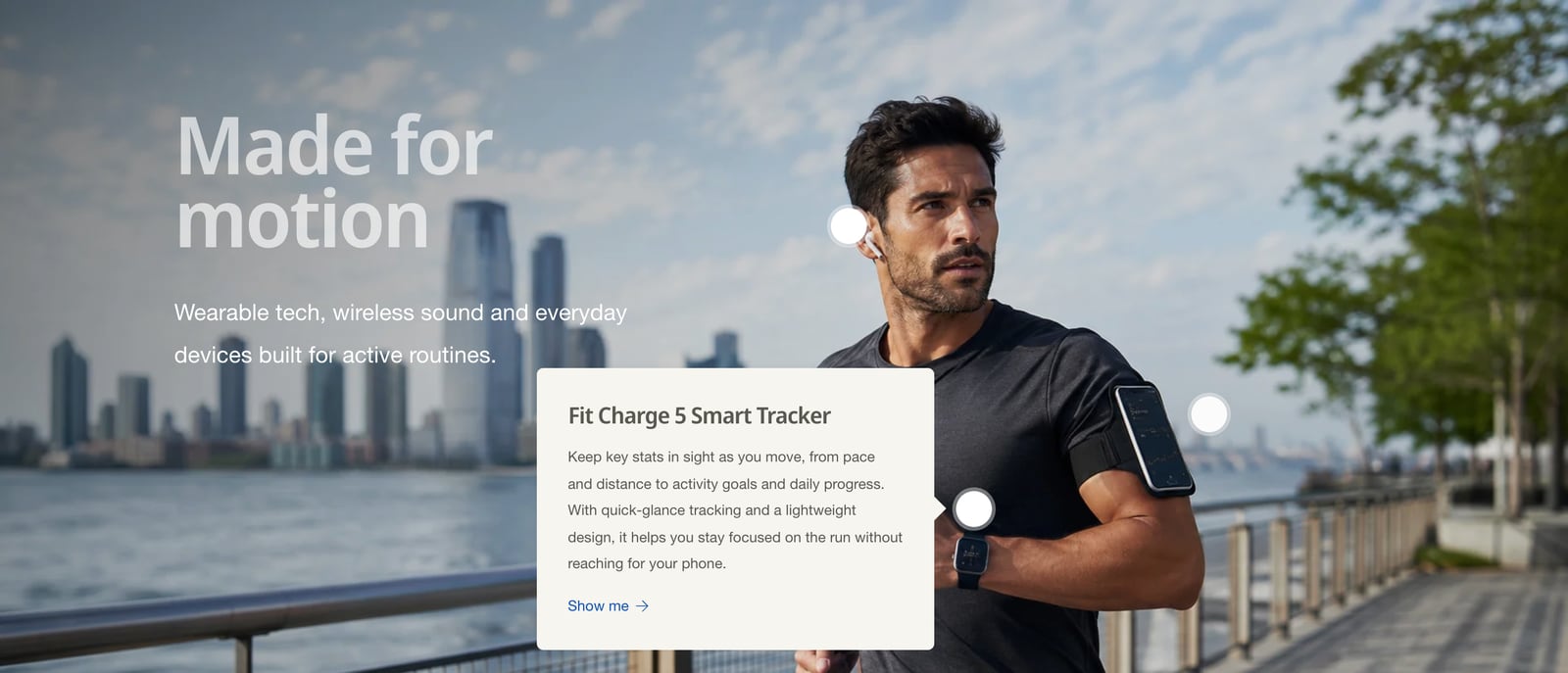
What the popover shows
- Product: fills the popover with the product’s details and links its button to the product page. Anything you type in the popover settings replaces the product’s own information.
- Popover title and Popover content: your own text, such as a feature or a styling tip. Keep it short.
- Button label and Button link: leave the label empty to hide the button.
Different positions on mobile
Turn on Use different positioning on mobile in a hotspot block to set separate mobile positions. You can also show a hotspot on mobile only or desktop only with Show on.
For exact placement, each position can come from a Single line text metafield instead, which also accepts decimals such as 47.5. This is useful when the same section shows a different image on each product.
Marker style
| Setting | What it does |
|---|---|
| Icon type | None, swatch, plus, magnify, map pin, question, info, price tag or camera. |
| Desktop size and mobile size | From 18 to 60px. |
| Pulse animation | A gentle pulse that tells customers the markers can be clicked. |
| Hotspot color, icon and opacity | Set these so markers stand out from the photo. |
| Popover width on desktop and color scheme | The size and colors of the popover. |
Section settings
- Split image: add a second image to show two side by side, with optional skewed edges on desktop.
- Minimum image height: the image’s own height or a fixed shape. See why images get cropped.
- Full width: runs the image edge to edge.
- Text position on desktop and Show a container around text: place the heading, text and buttons over the image.
The heading supports animated and styled words.
Common questions
How do I make a shoppable image in Shopify with Ignite?
Add the Image hotspots section, choose an image, then add a Hotspot block for each product. Drag the position sliders to place it, and choose the product in Product.
Can hotspots be in a different place on mobile?
Yes. Turn on Use different positioning on mobile in the hotspot block and set the mobile position separately.
How many hotspots can I add?
There’s no fixed limit, but three to six keeps an image easy to read, especially on a phone.