Related products
Related products suggests other products a customer might like, right on the product page. It’s a simple way to keep people browsing when the product in front of them isn’t quite right.
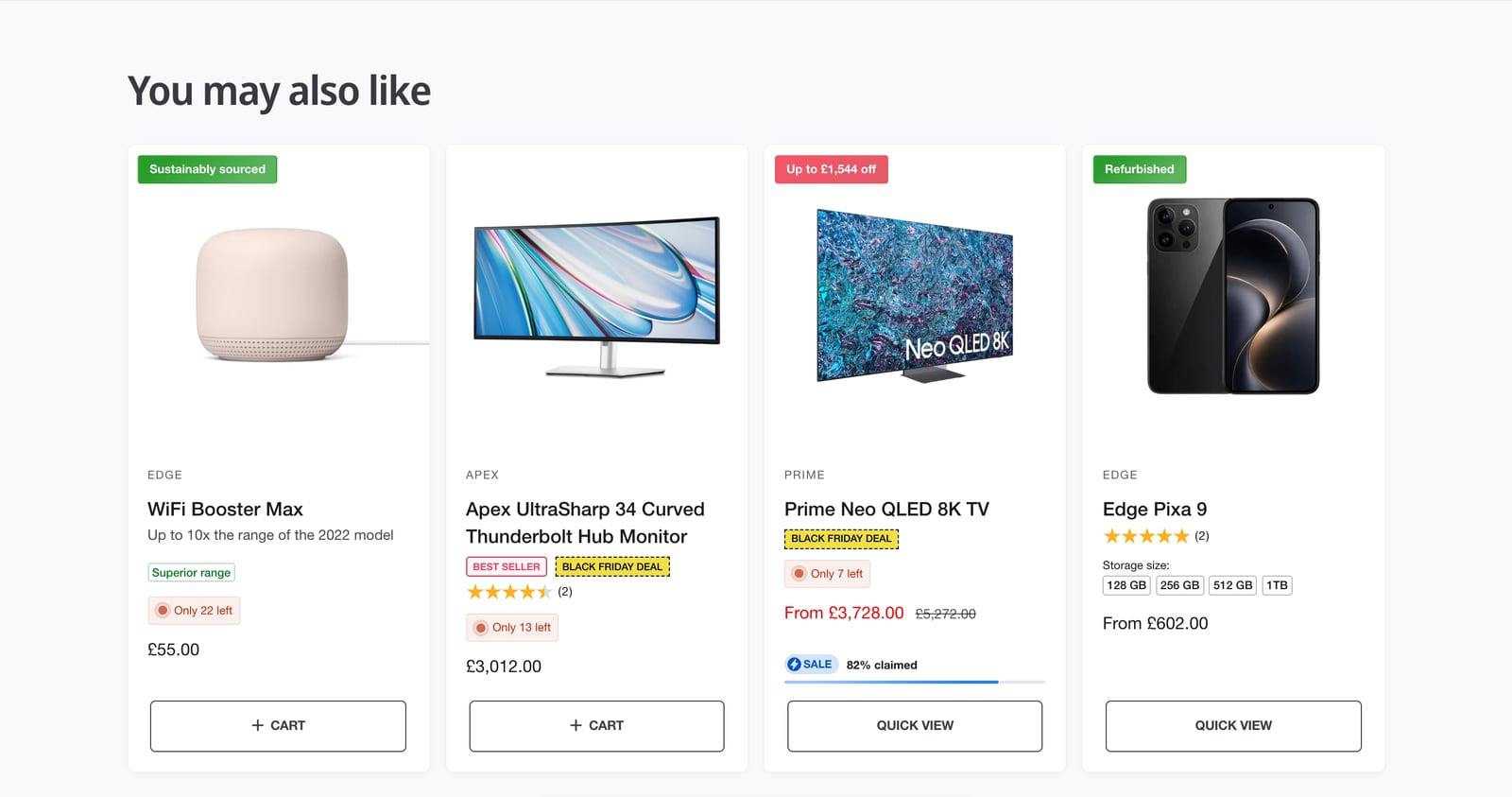
Add related products
- In the theme editor, open Products > Default product, or another product template.
- Click Add section and choose Related products.
- Set Maximum products to show, from 2 to 10.
- Click Save.
Where the products come from
Shopify chooses the products automatically, based on your orders and product information, and its choices improve over time. A new store with few orders may see less relevant suggestions at first.
To choose them yourself, use Shopify’s free Search & Discovery app.
Layout
- Desktop layout and Mobile layout: grid or carousel.
- Card size on desktop, Number of columns on mobile and Width on desktop.
- Heading: the default is “You may also like”.
The cards themselves are set up in Product cards. Related products can also appear in the cart. See Cart and cart drawer.
Common questions
Where do Ignite’s related products come from?
From Shopify’s product recommendations, which use your orders and product information and improve over time.
Can I choose the related products myself?
Yes, with Shopify’s free Search & Discovery app, which lets you set related and complementary products for each product.
Can related products show in the cart?
Yes. Turn on Enable related products in Theme settings > Cart/Cart drawer.