Preorder template
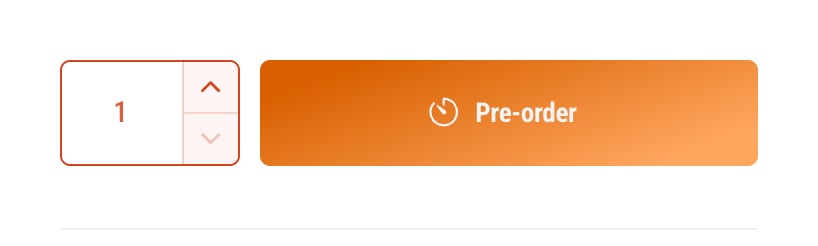
Use preorders for products that are coming soon or temporarily out of stock, so you don’t lose the sale. Ignite’s preorder template changes the button, adds a badge and keeps everything else the same.
Set up a preorder product
- In your Shopify admin, open the product.
- Under Theme template, choose preorder.
- Make sure the product can be bought. If it has no stock yet, turn on Continue selling when out of stock for each variant.
- Click Save.
To adjust the page, open Products > preorder in the theme editor.
What changes on a preorder product
- The buy button reads Pre-order instead of Add to cart, on the product page and in quick add.
- Dynamic checkout buttons, such as Shop Pay, are hidden, so every preorder goes through the cart.
- A Preorder badge appears on product cards, and in the cart if you like. Set it up in Product badges.
Tell customers when it ships
Customers buying ahead want to know when their order will arrive. Add a Notification message block near the button, such as “Ships from 1 March”. Use a variant metafield if dates differ by variant.
Payment
Preorders are paid in full at checkout, like any other order. Ignite doesn’t take deposits or charge later. For that, use a preorder app from the Shopify App Store.
Common questions
How do I take preorders on Shopify with Ignite?
Assign the preorder product template to the product. Its button then reads Pre-order, and the product gets a Preorder badge. The product must be available to sell, so set it to continue selling when out of stock.
Does Ignite charge preorders later?
No. Preorders are paid at checkout like any other order. To charge later or take deposits, use a preorder app.
Why don’t preorder products show a Buy it now button?
Ignite hides dynamic checkout buttons, such as Buy it now and Shop Pay, on preorder products. Every preorder goes through the cart, where customers see the Preorder badge, and they can still pay with Shop Pay at checkout.