FAQ page
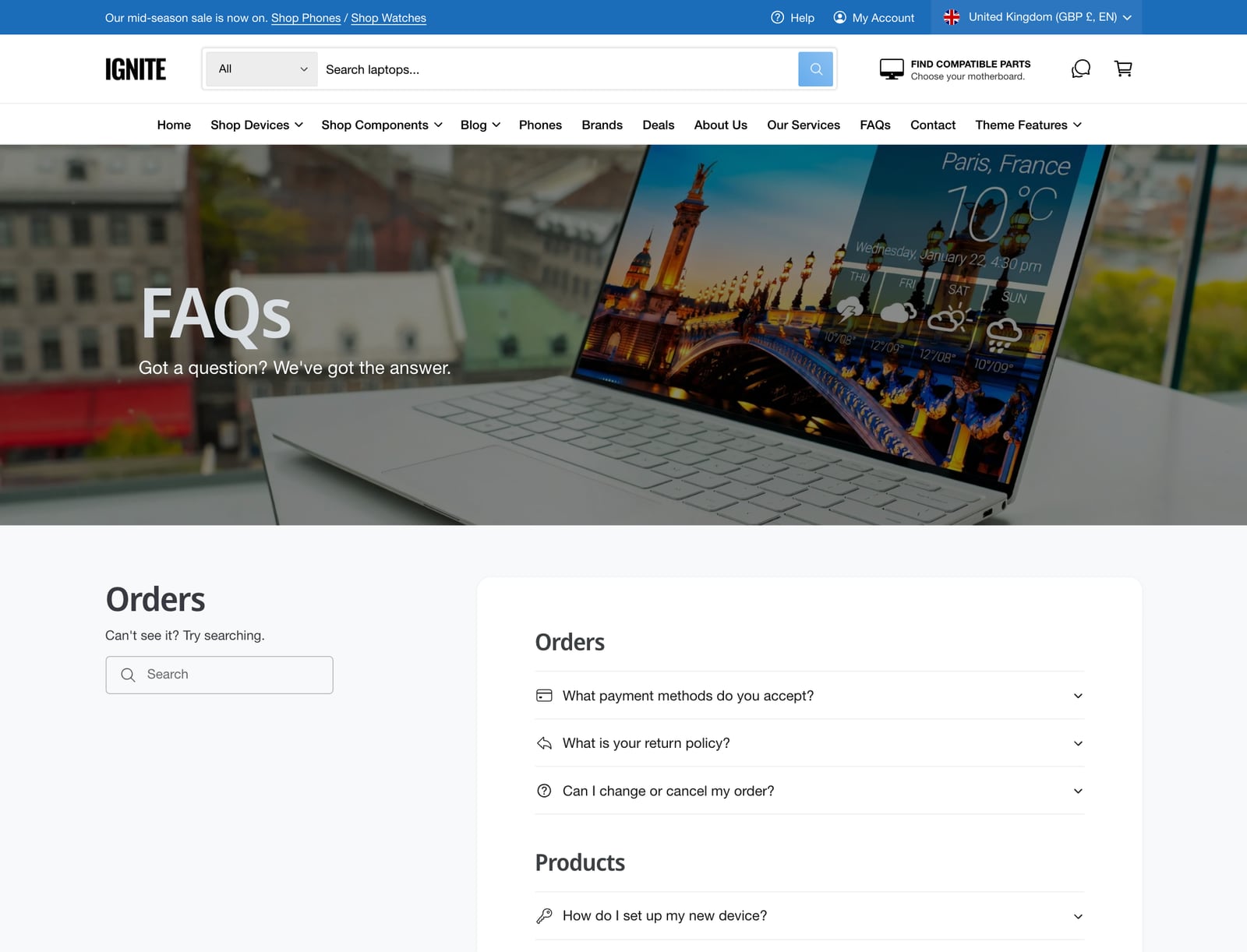
A good FAQ page answers questions before customers have to ask, and it’s one of the most useful pages for search engines and AI assistants. Ignite’s FAQ template has searchable, expandable questions and can add FAQ schema for you.
Set up your FAQ page
- In your Shopify admin, go to Online Store > Pages and click Add page.
- Give it a title, such as “FAQs”, and choose the faq template. Click Save.
- In the theme editor, open Pages > faq.
- In the Collapsible rows section, click each Collapsible row block and type a question in Heading and the answer in Content.
- Add a row for each question, then click Save.
- Add the page to your menu or footer, so customers can find it.
The template comes with an image banner at the top, the page title and text, and the Collapsible rows section. Remove or rearrange any of them.
Organize questions by topic
Add Heading blocks between rows to group them, such as Orders, Delivery and Returns. Text and Spacer blocks help break up long lists. For very long FAQs, use one Collapsible rows section per topic.
- Open one row at a time: closes the open answer when another is opened. On by default.
- Show header beside collapsible rows: puts the section heading, text and search box in a column beside the questions on desktop.
- Open row by default: opens one answer when the page loads, such as your most asked question.
- Icon: each row can have an icon beside the question.
Searchable questions
Show search box adds a search field above the questions. As customers type, only the matching questions stay visible. It’s on by default.
Writing answers
Each row’s answer can come from three places:
- Content: type it in.
- Content from page: reuse an existing page, such as your returns policy, so you only update it in one place.
- Content from Liquid code: for apps or dynamic content.
A row can also have a button, such as “Start a return”.
Add FAQ schema
Turn on Generate FAQPage Schema.org in the Collapsible rows section. Ignite then marks up every question and answer as structured data, which helps search engines and AI assistants find and quote your answers.
Collapsible rows elsewhere
The Collapsible rows section works on any page, such as a product template for shipping questions. For rows beside an image that changes, use Image with collapsed rows. For a product’s own details, use the Collapsible row block in Product page.
Turn on Hide this section when there’s no row content to show if the rows pull their answers from metafields that some pages leave empty.
Common questions
How do I create an FAQ page in Shopify with Ignite?
Create a page in Online Store > Pages, choose the faq template, then add your questions as Collapsible row blocks in the theme editor.
How do I add FAQ schema to my Shopify FAQ page?
In the Collapsible rows section on your FAQ page, turn on Generate FAQPage Schema.org.
Can customers search the FAQs?
Yes. Show search box is on by default in the Collapsible rows section, and it filters the questions as customers type.