Product list
Product list shows the products you choose, in the order you choose. It’s ideal for staff picks, “complete the look” sets and buying guides, where a collection would be too broad.
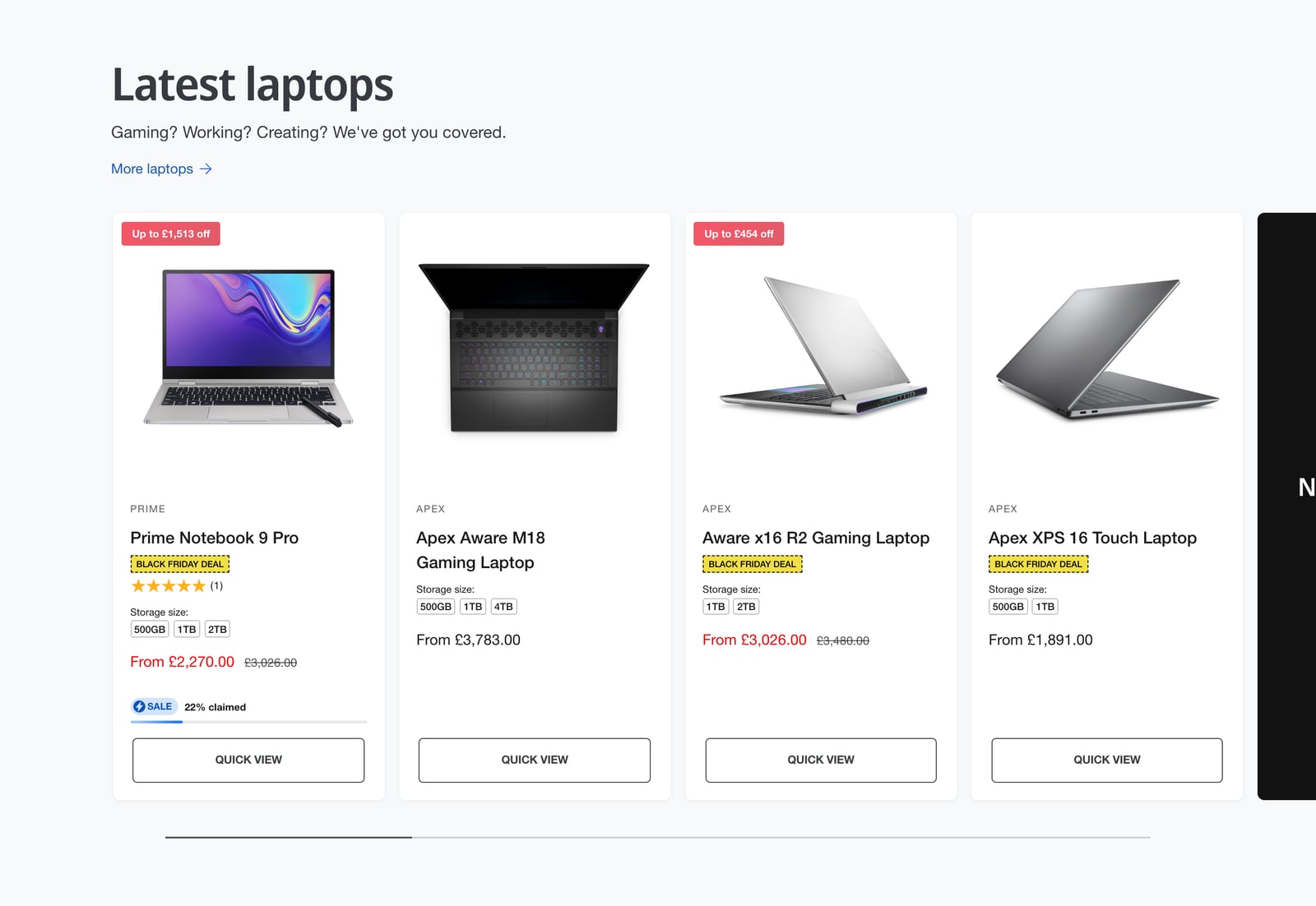
Add a product list
- In the theme editor, click Add section and choose Product list.
- In Products, choose your products and drag them into order.
- Add a heading and description, or leave them empty.
- Click Save.
Grid or carousel
- Desktop layout and Mobile layout: grid or carousel, set separately.
- Card size on desktop: XS to XL.
- Number of columns on mobile: one or two.
- Width on desktop: page width, standard or wide.
The cards themselves are set up in Product cards.
View more link and card
Turn on Show “View more” link and set View more link to a collection or page, such as all laptops. The “View more” card adds the same link as an extra card after the last product, on mobile, desktop or both.
Advanced
Hide this section when there are no products to show hides it on pages where the metafield is empty. See Showing sections at the right time.
To show a whole collection instead, use Featured collection.
Common questions
How do I show hand-picked products on a Shopify page with Ignite?
Add a Product list section and choose the products in Products. Drag them into the order you want.
What’s the difference between Product list and Featured collection?
Featured collection shows products from one collection. Product list shows products you pick one by one, from any collection.