Image banner
A single strong image with a clear message is often the best start to a page, and it loads faster than a slideshow. The Image banner can also hold a countdown, a discount code or a signup form.
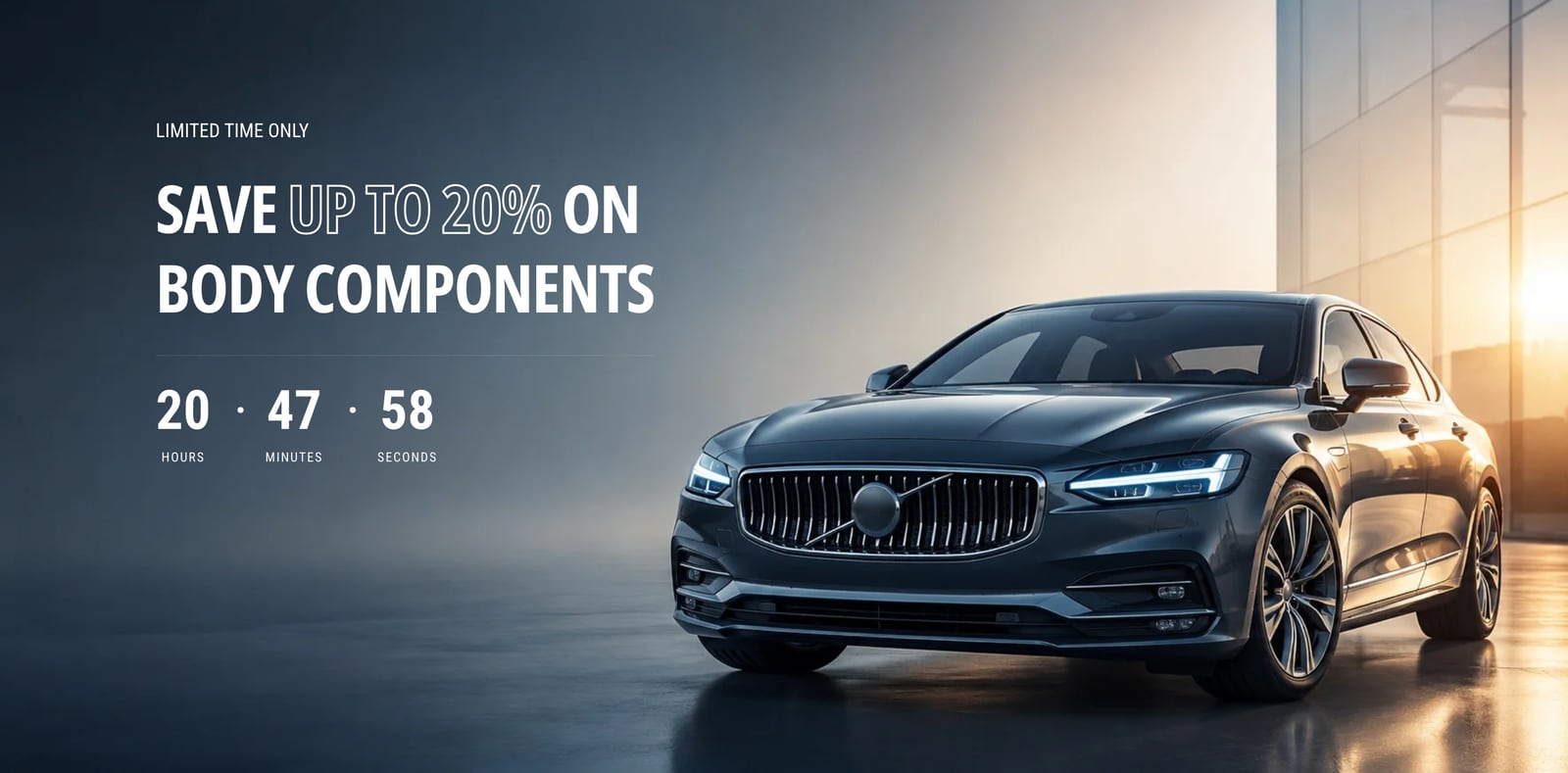
Add an image banner
- In the theme editor, click Add section and choose Image banner.
- Choose an Image. Use a big, wide image.
- Edit the heading, text and buttons, or add other blocks.
- Set Text position on desktop and Text position on mobile.
- Click Save.
Blocks include heading, caption, text, buttons, images, icons, stat counter, countdown and discount code, email signup form, spacer and custom Liquid. The heading supports animated and styled words.
Image options
- Image link: makes the whole banner clickable.
- Image overlay opacity: darkens the image so text is easier to read.
- Fix image on scroll: keeps the image still while the page scrolls over it.
- Split image: add a second image to show two side by side. Two big square images work well. Skew images on desktop angles the edge between them, and Stack split image on mobile puts one above the other on phones.
Layout
- Minimum image height: the image’s own height, a fixed shape such as 16:9, or custom heights for desktop and mobile. Taller settings crop more of the image. See why images get cropped.
- Full width, and Animate full width borders on scroll, which grows the banner to the edges as it scrolls into view on desktop.
- Show a container around text: a panel behind the text on mobile, desktop, both or neither.
- Show text below image on mobile: moves the text under the image on phones, so the whole picture stays visible.
Advanced
- Hide this section when there’s no image to show: for banners whose image comes from a metafield. See Showing sections at the right time.
- Only show at specific times of the day, and Show on mobile, desktop or both.
Banners and speed
The first image on a page affects how fast it appears. Use one well-compressed image at the top, rather than a slideshow or video. See Theme speed.
For a newsletter signup with an image, see Email signup banner.
Common questions
Should I use an image banner or a slideshow?
An image banner if you have one main message. It loads faster, and nothing important is hidden on a later slide. Use a slideshow when you genuinely have several equal messages.
How do I show two images side by side?
Add a second image in Split image. Turn on Skew images on desktop for an angled edge between them.
How do I stop text covering the image on phones?
Turn on Show text below image on mobile, or show the text container on mobile only.