Product compare
Customers choosing between similar products want to see them side by side. The Product compare section is a comparison table you build, such as “Which model is right for you?”, with no app needed.
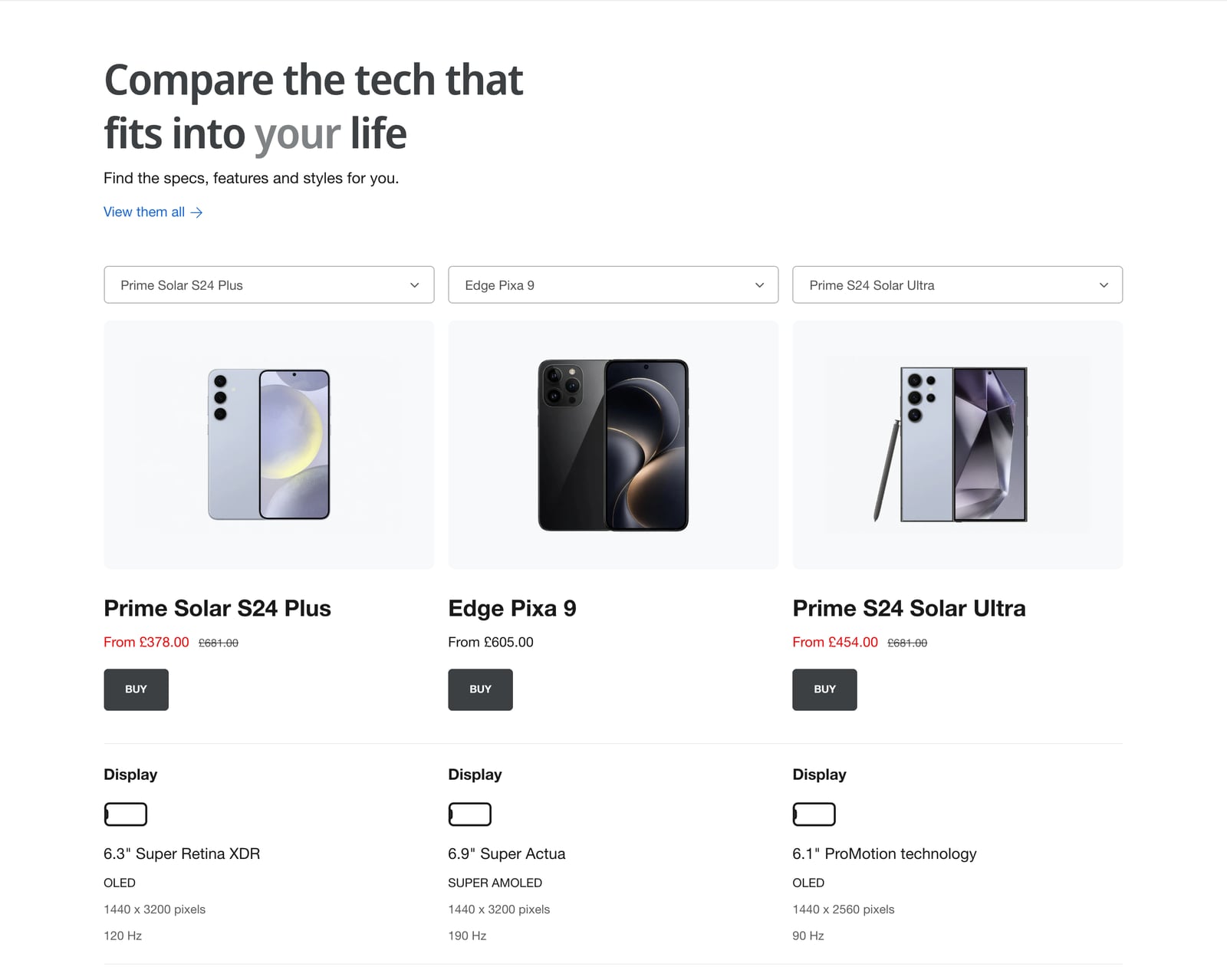
Add a comparison
- In the theme editor, click Add section and choose Product compare.
- In Products to compare, choose up to 10 products.
- Add blocks for each row you want to compare. See Choose what to compare.
- Choose a Layout on desktop: Labels in each card, or Labels in a left column like a classic table.
- Click Save.
Section settings
| Setting | What it does |
|---|---|
| Text for empty values | Shown when a product has no value for a row. The default is a dash. |
| Pin product summary when scrolling | Keeps each product’s name, image and price in a bar at the top while customers scroll down a long comparison. It doesn’t show on tablets. |
| Card size on desktop | How wide each product is, with labels in each card. |
| Minimum card width and Add a border around labels | For the left-column layout. |
| Number of columns on mobile | One or two products side by side on phones. |
| Labels | The weight and capitalization of the row labels. |
| Heading, description and “View more” link | Text above the comparison. |
| Section and compare card color schemes | The colors of the section and each product. |
Choose what to compare
Each block adds a row. Drag them to change the order, and give each one a Label.
| Block | Shows |
|---|---|
| Product summary | The image, title, price, swatches, quick add button and a link to the product. |
| Product switcher | A dropdown above each product, so customers can swap it for another from a list you choose. |
| Product price, vendor, type and rating | Each as its own row. |
| Product variants | Every option the product comes in. |
| Product variant option | One option, such as the sizes or storage capacities available. |
| Product weight | The weight, when all variants weigh the same. |
| Product description | The description, optionally cut to a number of words. |
| Product metafield | Any metafield, such as screen size, with an optional prefix and suffix. |
| Product score metafield | A whole number shown as icons, such as 4 out of 5 stars. Needs an Integer metafield. |
| Product yes/no metafield | A check or a cross. Needs a True or false metafield. |
| Heading, text, image, icon, buttons and more | Content that’s the same for every product, such as a heading inside the comparison. |
Every block has Show on, so a row can appear on mobile only or desktop only.
Comparing specifications
Specifications come from product metafields. Create one metafield per specification, fill it in on each product, then add a block for it:
custom.screen_sizeTo use a different label per product, put the label in another metafield and type its namespace and key in Label, such as custom.spec2_label.
Help AI assistants read your comparison
Ignite also writes the comparison as a plain table hidden in the page, which search engines and AI assistants can read easily. Fill in Comparison table AI text with a short summary, such as “The Pixa 9 has the brightest screen; the S24 Ultra has the longest battery life.” It’s added to that table, and customers don’t see it. See SEO and AI search.
Common questions
Can I add a product comparison table to Shopify without an app?
Yes. Add Ignite’s Product compare section to any page, choose up to 10 products, and add a block for each row you want to compare.
How do I show specifications in the comparison?
Store each specification in a product metafield, such as custom.screen_size, then add a Product metafield block with that namespace and key.
Can customers choose which products to compare?
Yes, in two ways. The Product switcher block adds a dropdown above each product, and the Product compare drawer lets customers tick products on collection pages.