Stats counter
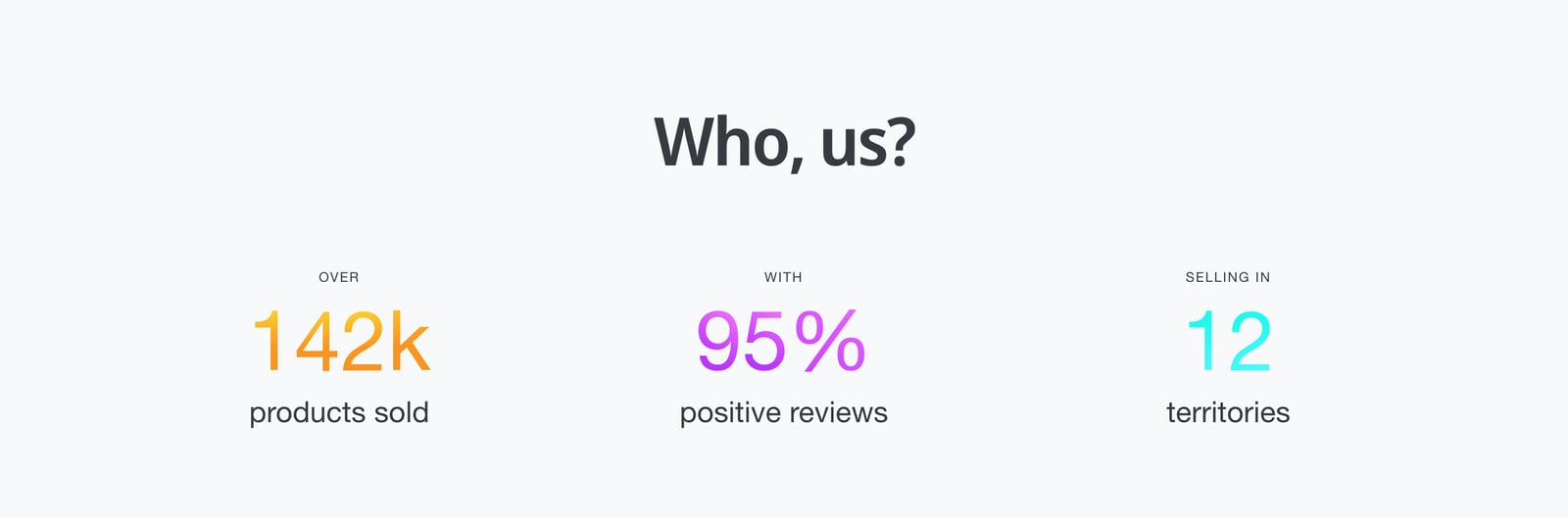
A few big numbers, such as products sold or countries served, tell new customers you’re established. The Stats counter section shows them large, and counts them up as they scroll into view.
Add stats
- In the theme editor, click Add section and choose Stats counter.
- Click a Stat counter block. Type the Caption above the number, such as “Over”, the number itself, and a Subheading, such as “products sold”.
- Add a block for each stat, then click Save.
What a stat can show
- Stat color: each number can have its own color, as in the example above.
- Icon, Description and Image, above or below the text.
- Button or Card link, to link to more detail.
- Card color scheme: its own colors.
Section settings
- Animate numbers: counts each number up as it scrolls into view.
- Stat size and Stat style: how big the numbers are, and whether they use the body or heading font. Check large sizes on a phone so they don’t get cut off.
- Number of columns on desktop: 1 to 4, with Gap between stats on desktop.
- Full width, Background image and Show card shadow.
Stats are also available as a block in many other sections, such as Image banner and Ribbon banner. The heading supports animated and styled words.
Common questions
How do I add animated numbers to my Shopify store with Ignite?
Add the Stats counter section and a Stat counter block for each number. Animate numbers is on by default.
Can I use symbols like % or k in a stat?
Yes. Type the number exactly as it should appear, such as 142k, 95% or 24/7.