Search
Many customers search before they browse, especially in big catalogs. Ignite shows matching products as they type, and the results page has the same filters as your collections.
Search has settings in three places: the search bar is in the Header section, what search looks for is in Theme settings > Search, and the layout of the results is in the Search results section of the search template.
Predictive search
Predictive search shows matching products, suggestions, collections and pages in a dropdown as customers type, so they can often skip the results page entirely.
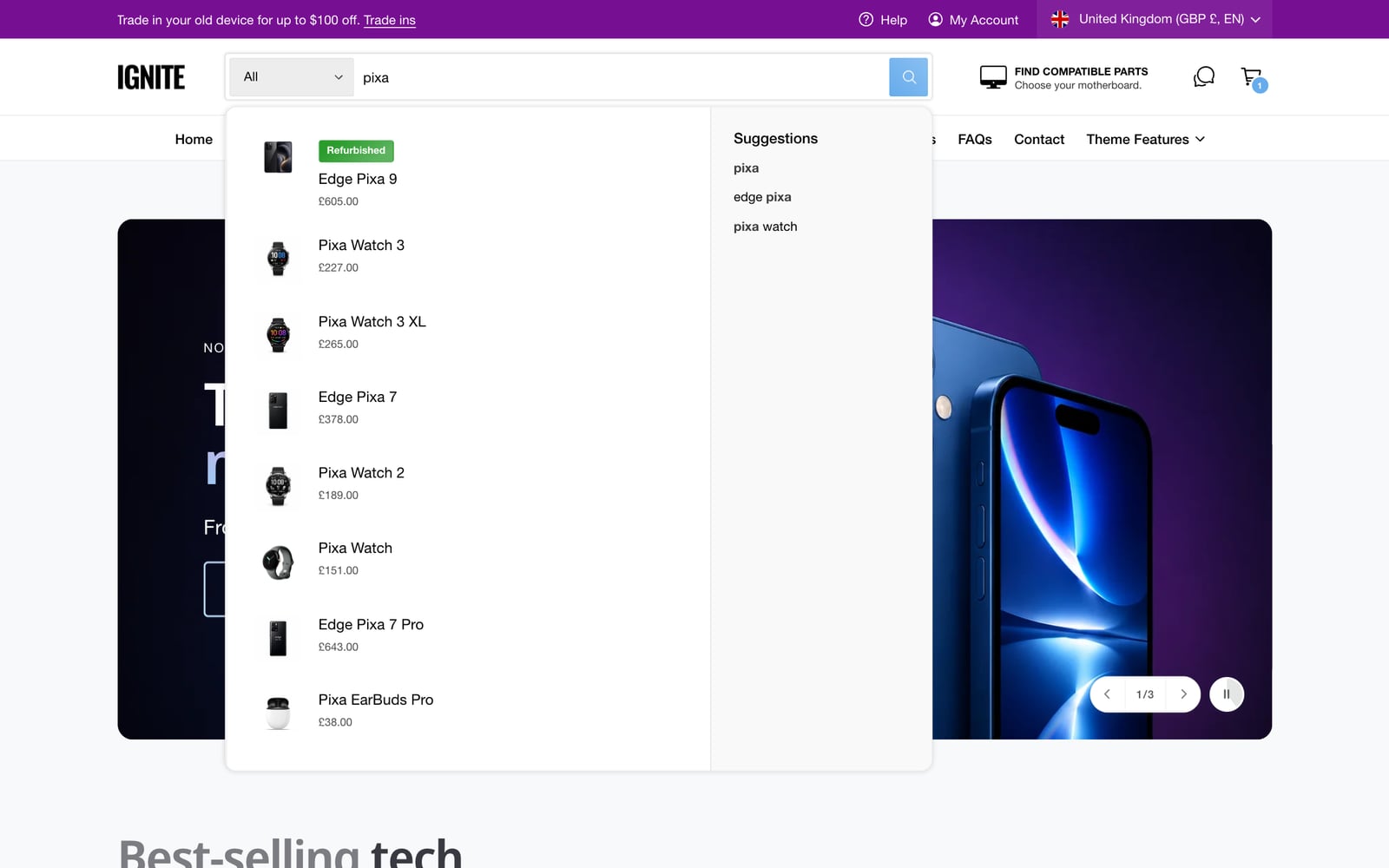
| Setting | What it does |
|---|---|
| Enable predictive search | Shows results as customers type. On by default. |
| Show product vendor | Adds the brand under each product. |
| Show product badges | Shows sale, new and other badges, as set in Product badges. |
| Suggested search terms | Popular searches to show before customers type, one per line. |
| Search by product description | Off by default. Turn it on if product names don’t say much, but expect looser matches. |
| Search by variant SKU and barcode | On by default. Useful for trade customers who know part numbers. |
| Search by product tags | On by default. |
iphone case
wireless charger
screen protector
Product type dropdown
Turn on Show product type dropdown to add a menu beside the search bar, so customers can search within one product type, such as Phones or Laptops. The Product type filter must also be turned on in the Search & Discovery app.
The search results page
Open the search template in the theme editor to set up the Search results section. It works like the collection page, with the same filters, filter boxes and swatches.
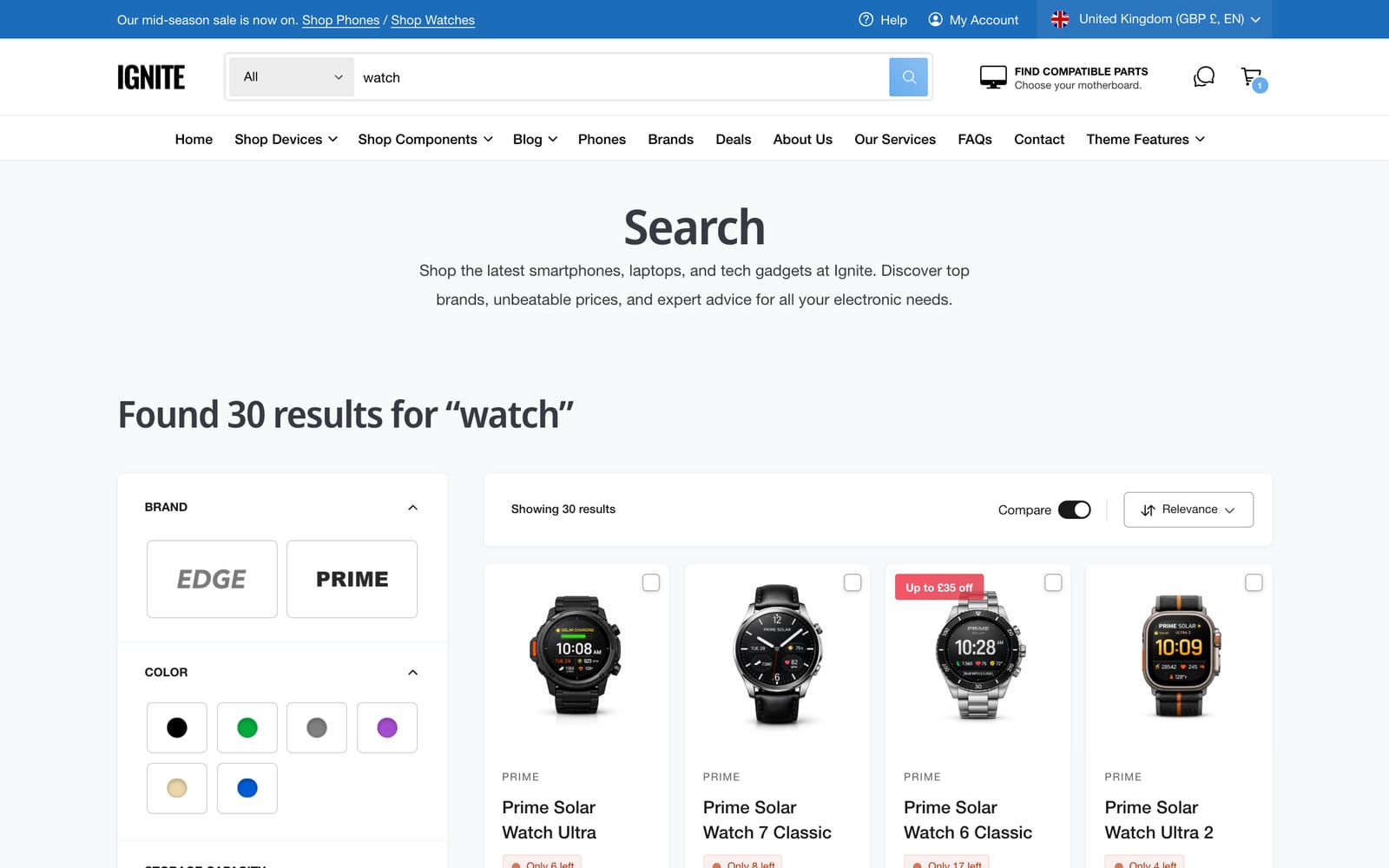
- Items per page: 8 to 48.
- Card size on desktop and Number of columns on mobile.
- Filter layout on desktop: a side panel or a drawer.
- Show date and Show author for blog posts in the results.
- Hide search when header search bar is visible: avoids two search bars on one page.
See Collection page for how the filters work.
What appears in results
Shopify’s free Search & Discovery app decides which products, pages, articles and collections appear, and in what order. Use it to add synonyms, boost products and set up filters.
Common questions
How do I turn on predictive search in Ignite?
It’s on by default. Check Theme settings > Search > Enable predictive search, and make sure the header’s Search layout isn’t set to Off.
Can customers search by SKU or barcode?
Yes. Search by variant SKU and Search by variant barcode are on by default in Theme settings > Search.
How do I add suggested searches?
Type them into Suggested search terms in Theme settings > Search, one per line.
Why don’t blog posts or pages show in search results?
Shopify’s Search & Discovery app controls which kinds of results appear. Check its search settings.