Product compare drawer
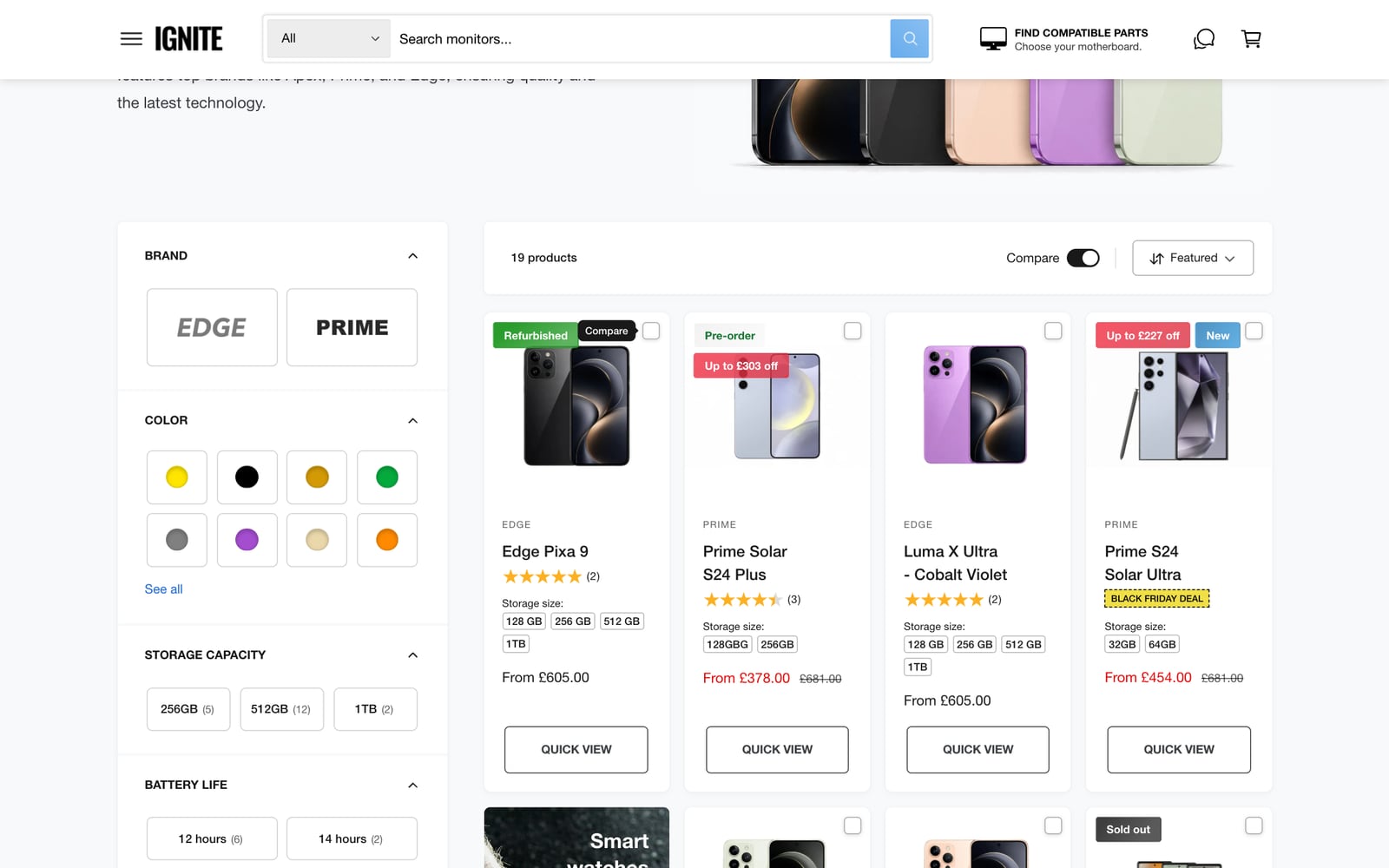
The compare drawer lets customers build their own comparison as they browse. They tick products on collection or search pages, the products collect in a drawer, and one click shows them side by side.
Set up the drawer
- In the theme editor, find the Product compare drawer section in the Overlays group of the sidebar. If it isn’t there, click Add section in Overlays to add it.
- Set Maximum products to compare, from 2 to 10.
- Choose where it works with Show drawer on: collection and search pages, chosen collections only, or all pages.
- Add or remove blocks to choose the rows customers compare, then click Save.
The rows use the same blocks as the Product compare section: price, vendor, variants, specifications from metafields and more.
How customers use it
- On a collection or search page, they tick Compare on the products they’re interested in.
- The products collect in the drawer, which shows how many they’ve chosen.
- They click the drawer’s button to see the products side by side, and can remove products or clear the list.
Settings
| Setting | What it does |
|---|---|
| Limit to collections | Only show compare checkboxes in these collections. Leave empty for all. |
| Separate comparison for each collection | Keeps a separate list per collection, so customers don’t compare phones with chargers. |
| Compare checkbox position | Over the image, below it, or in a bar at the top of the card. |
| Show compare toggle | Adds a Compare switch above the products, so customers can show or hide the checkboxes. When it’s off, the checkboxes always show. |
| Set compare toggle to be on by default | Whether the checkboxes show when the page first loads. |
| Button label | The drawer’s button text, also used as the heading. With chosen collections, you can add the collection’s name. |
| Drawer style on desktop | Along the bottom of the screen, or down the right side, and its position. |
| Comparison layout on desktop | Labels in each card, or in a left column. |
| Pin product summary when scrolling | Keeps the products’ names and images in view in long comparisons. On by default. |
| Color schemes | Separate schemes for the drawer, the products in it and the comparison popup. |
Common questions
How do I add compare checkboxes to Shopify collection pages with Ignite?
Open the Overlays group in the theme editor and make sure the Product compare drawer section is there. Compare checkboxes then appear on product cards on collection and search pages.
How many products can customers compare?
Between 2 and 10. Set it with Maximum products to compare.
Do customers lose their comparison when they leave the page?
No. The compare list is saved in their browser, so it’s still there as they move between pages or come back later on the same device.