How to add year, make and model search to Shopify
Parts shoppers arrive with a vehicle, not a part number. Set up dropdowns that show only the parts that fit, using metafields and Shopify’s own filters, with no fitment app.
 11 min read
Quick answer
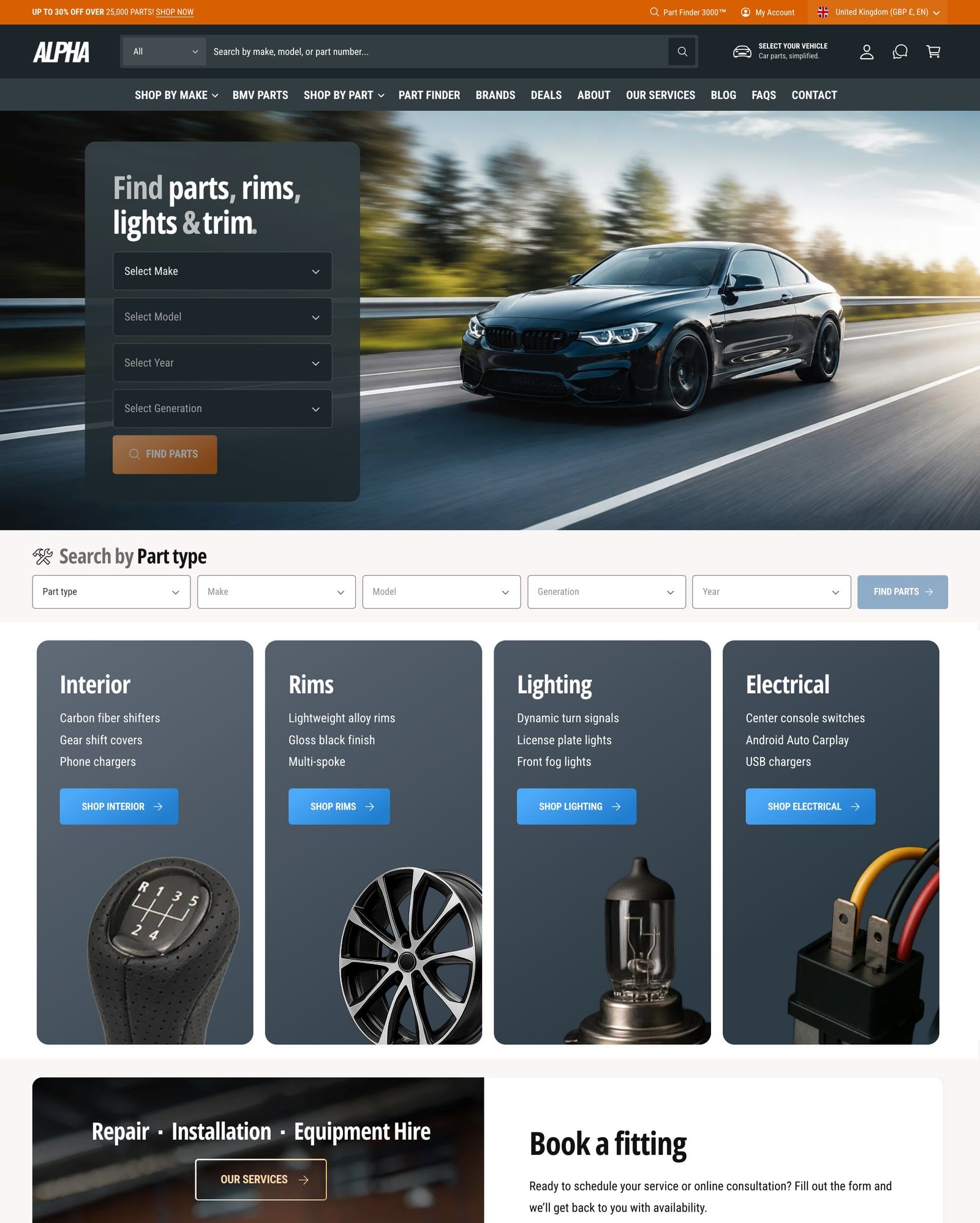
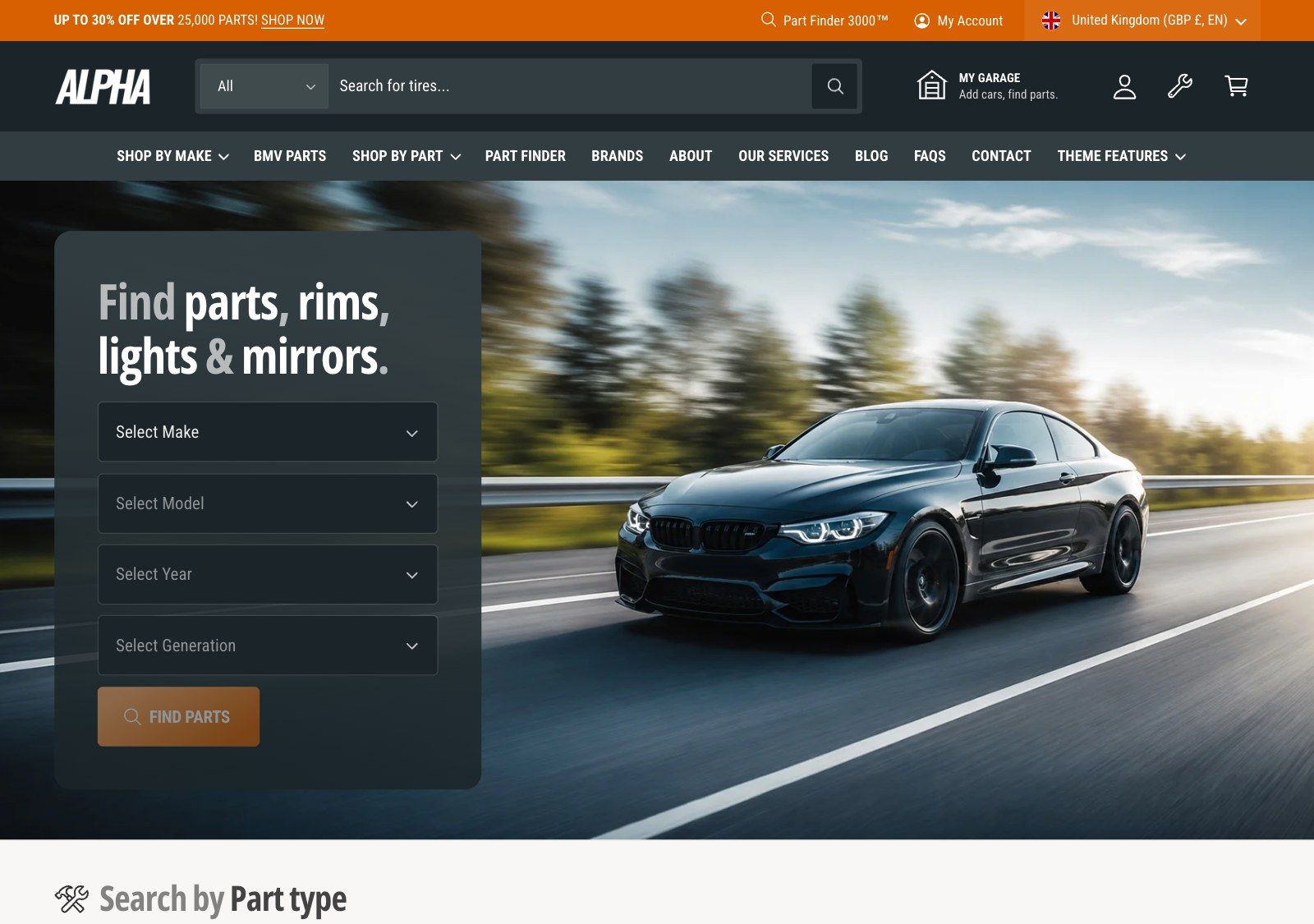
To add year, make and model (YMM) search to Shopify without a fitment app, store each part’s fitment in product metafields, such as make, model and year, and turn them into filters in Shopify’s free Search & Discovery app. Then use a theme that builds dropdowns from those filters. In Alpha, that’s the Quick filter (YMM) section. Add a saved garage and “Fits” badges, and customers know what fits before they ask. Plan around one limit: Shopify’s filters can’t tie one value to another, such as a year to a specific model, so very complex fitment may need a menu-based setup or an app.
We make Alpha (part of the Ignite theme), so the setup steps in this guide use it. The planning advice holds whichever theme or app you use.
Why a search box isn’t enough
Parts shoppers don’t browse. They arrive with a vehicle and a problem, and the only question that matters is “will it fit?” A search box doesn’t help, because they don’t know the part number. A category menu doesn’t either. Brake pads for a 2019 Focus look just like brake pads for everything else.
YMM search asks about the vehicle first. The customer picks their make, then their model, then their year, and lands on the parts that fit. You get fewer wrong orders and fewer “will this fit my car?” emails, and shoppers don’t leave to check somewhere else.

Plan the dropdowns before you touch Shopify
YMM setup can be confusing at first. When merchants write to our support unsure where to start, we walk them through it in the order this guide follows: product metafields, then collections, then filters in Search & Discovery, then the section in the theme editor. Planning comes before all of it.
Decide what customers choose, and in what order. Make, model and year is the classic. Some stores add generation, engine or trim, because a 2019 model can come in three versions that take different parts.
Start broad and narrow down, so make comes first, then model, then year, and each choice cuts the list. Use the words customers use: Focus, not FCS-MK4. And plan it in a spreadsheet, with one row per part and one column per dropdown. Gaps and typos are much easier to spot there than across hundreds of products.
Alpha’s Quick collection filter takes up to six dropdowns. Fewer is better. Every extra one is another click before the customer sees a part.
Store fitment in metafields
Each dropdown needs its own field on the product, so Shopify can filter by it.
- In your Shopify admin, go to Settings > Metafields and metaobjects > Products.
- Add a definition for each dropdown, such as
custom.make,custom.modelandcustom.year. - Choose the type Single line text with List of values, so a part that fits more than one vehicle can hold several makes, models or years.
- Fill the metafields in on each product. For a big catalog, Shopify’s bulk editor saves a lot of clicks.
Spell values the same way everywhere. BMW and Bmw become two different options in the dropdown.
New to metafields? Shopify’s own help docs are a good start. On YouTube, we usually point merchants to anything by Jan Frey.
Turn the metafields into filters
Shopify’s filters work inside a collection, so you need collections to search first. Most stores need at least one broad one, such as All performance parts. Many add narrower ones, such as Subaru parts or Engine components.
- Install Shopify’s free Search & Discovery app, if you haven’t already.
- Go to Filters and add a filter for each metafield. Drag them into the order customers should choose them.
- Open a collection on your storefront and check that the filters appear, with the names you expect.
A filter only shows values that at least one product in the collection has. A value missing from the filters will be missing from the dropdowns too, so this is the place to catch gaps.
Add the Quick filter (YMM) section
- In the theme editor, click Add section and choose Quick filter (YMM). It comes with a heading, some text and a Quick collection filter block.
- Select the block. In Use filters from this collection, pick the collection customers should search, such as
All products. - Under Filter 1, type the Filter name exactly as it appears on the collection page, such as
Make, and a Dropdown label customers see, such asSelect make. - Repeat for each filter, in the order customers should choose them. Clear any you don’t need.
- Click Save.
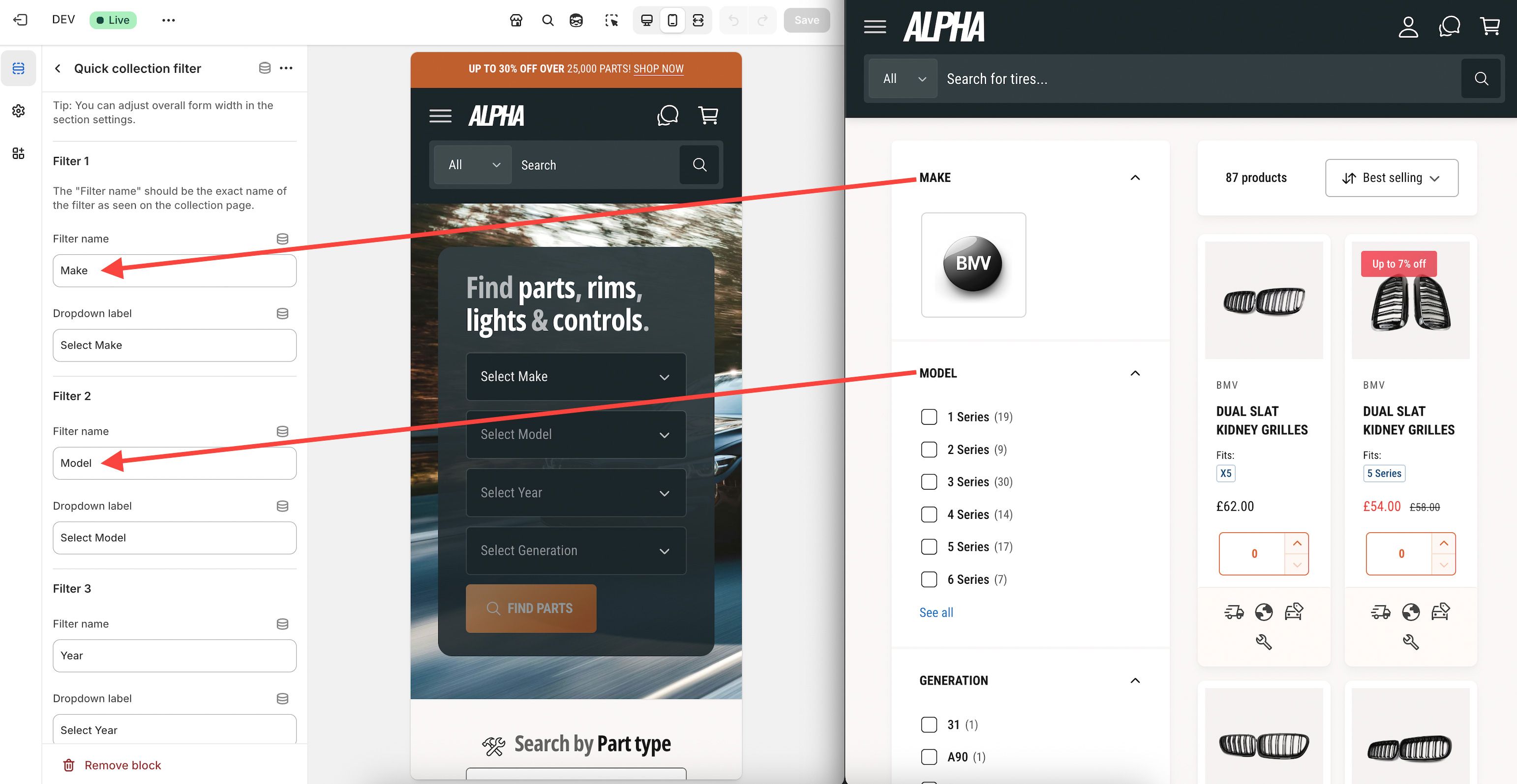
Each choice fills the next dropdown with values that still have products, so customers never reach a dead end. The search button works after the first choice, which means a customer can search by make alone. They land on the collection with their choices applied as filters.
The section works on any template. The same block also fits inside a Rich text, Image with text, Video banner, Video with text or Collection banner section. Most stores put it at the top of the home page, where nobody can miss it.
No metafields yet? The Quick menu filter builds up to three dropdowns from a Shopify menu instead. It takes longer to set up for a big catalog, but you decide exactly what appears in each dropdown, and it can link anywhere. It’s also the way around the first limit below. See when to build the dropdowns from a menu.
On the collection pages customers land on
Add a Quick filter there too, and turn on Use the filter as sub-navigation. The dropdowns then show what the customer already chose, so they can change the year without starting again.
Remember the customer’s vehicle
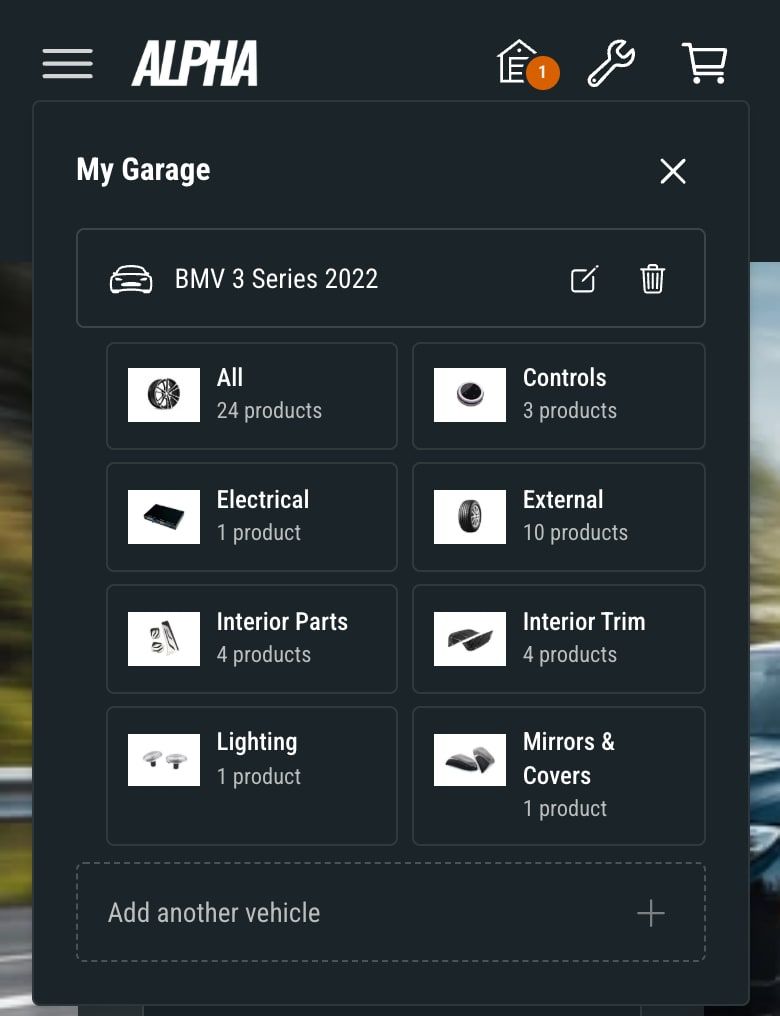
Nobody wants to pick their car again on every visit. Alpha’s My Garage, which the theme editor calls the Compatibility finder, lets customers save up to five vehicles. They don’t need an account, because the list is kept in their browser.
- In the Header section, under Call to action & Compatibility finder, turn on Enable call to action and set On click to Open compatibility finder.
- Add a Compatibility finder block and enter the same filter names as your Quick filter.
- Choose the Collections to show in the panel, such as
BrakesandLighting, then click Save.
A saved vehicle lists the collections that have parts for it, so one click takes the customer straight to brake pads for their car.
Show the fit on every product
Search gets customers to the right collection. Once they’re looking at a part, they still want confirmation.
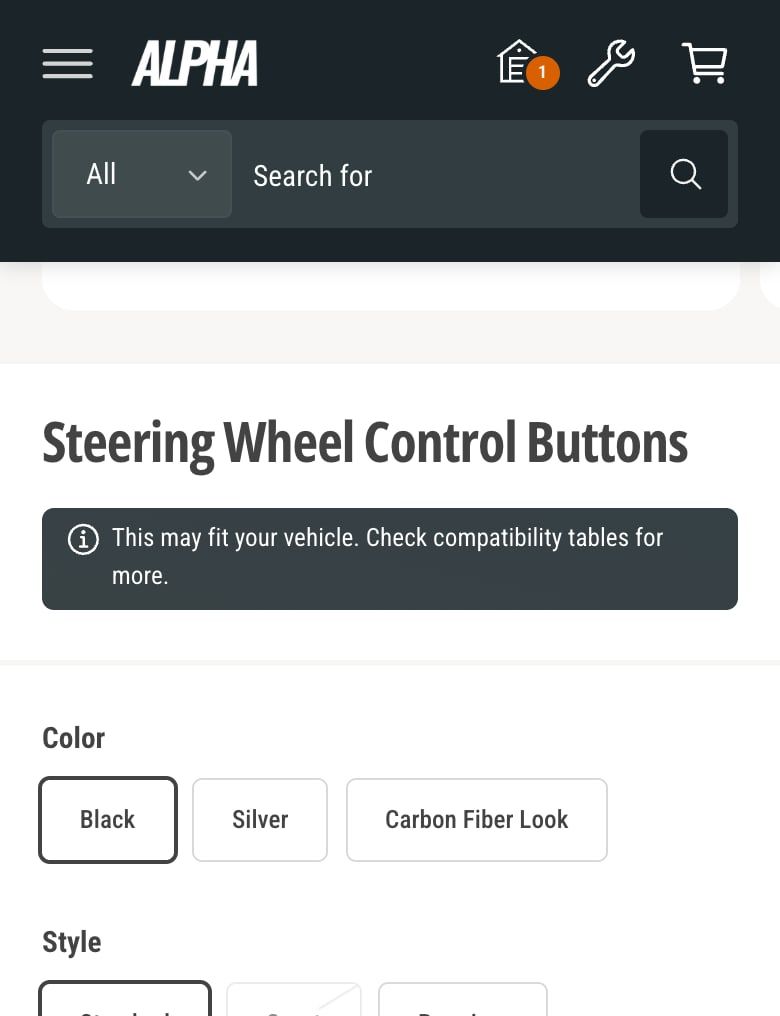
On product pages, add a Compatibility badge block to Product information. Type [name] in the message to show the customer’s vehicle, such as “Fits your BMW 2 Series 2022”. For parts that don’t match, hide the badge or show a softer note, such as Check the compatibility table.
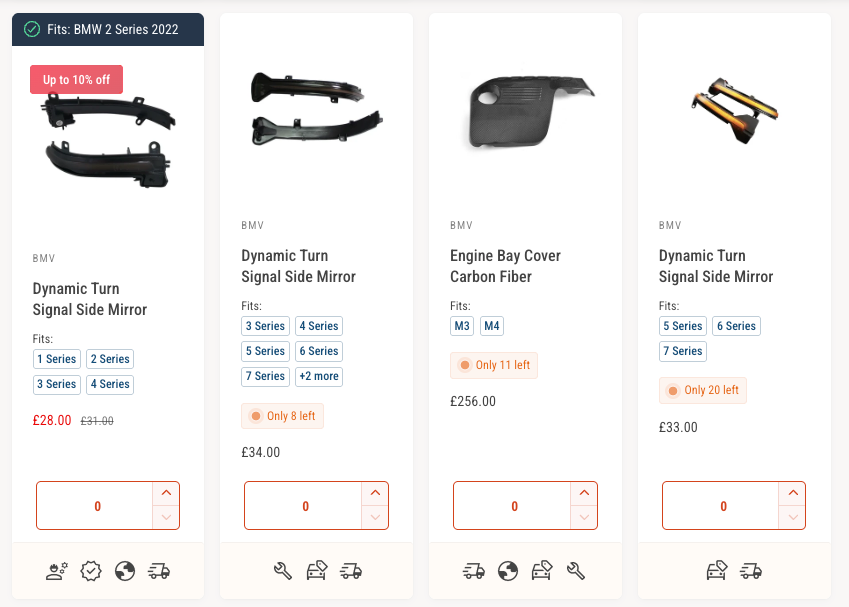
On product cards, go to Theme settings > Product cards and choose where the Compatibility badge sits: above the title, below the price, or as a bar across the top. Card badges only appear on a match, which keeps collection pages clean.
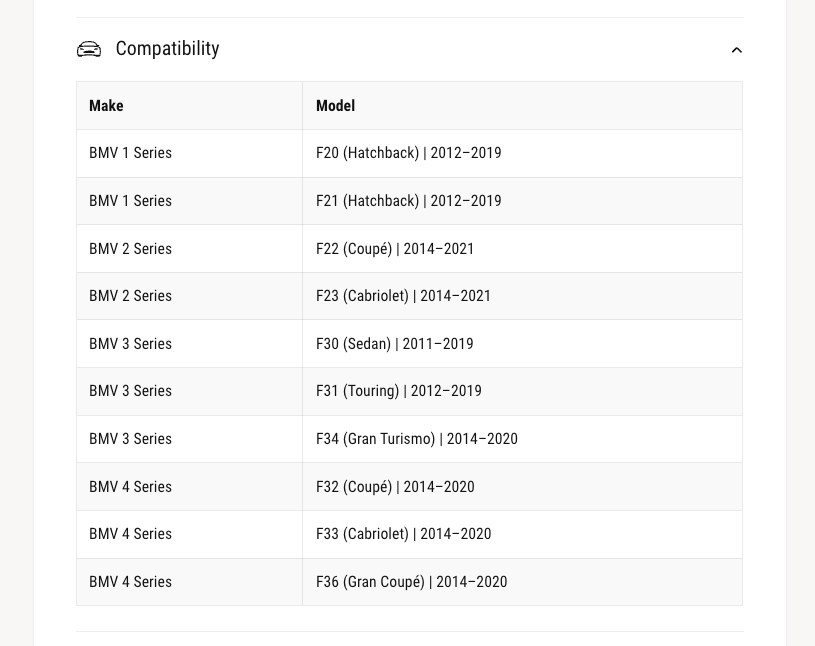
Customers without a saved vehicle need the fitment spelled out. Add a Table block with up to 15 rows, such as make, model and year range, and connect each cell to a metafield so every part shows its own fitment.
Where Shopify’s filters fall short
Running YMM search on Shopify’s own filters is simpler to live with for years. There’s no second system, and the data is yours. But it has limits, and it’s better to know them before you fill in a thousand products. They come from Shopify, not from the theme, so they apply to every theme that works this way.
Filters can’t tie one value to another
Each metafield works on its own. Shopify has no way to say that this year goes with that model. Take a part that fits two cars: a 2020 Model A and a 2021 Model B.
Its Year metafield holds 2020 and 2021, and its Model metafield holds Model A and Model B. Nothing records which year belongs to which model. So a customer who picks 2020 still sees both models as options. And a customer with a 2021 Model A still sees the part, even though it doesn’t fit their car. My Garage and its badges use the same filters, so they share the limit.
How much that matters depends on your catalog. If your fitment is precise, you can work around it:
- Where you can, use values that carry the pairing themselves, such as a generation with its years, like
F30 (2011–2019), rather than a separate model and year. - Build the dropdowns with the Quick menu filter. You set every path by hand in a Shopify menu, so each dropdown only offers what really goes together. It takes longer, and it tops out at three dropdowns. See when to build the dropdowns from a menu.
- Back it up on the product page with a fitment table that lists the exact vehicles each part fits, so customers can check before they buy. Word the badge with care, too. If your fitment has overlaps like this,
May fit your [name]. Check the compatibility tableis safer than a flatFits.
Filters stop at 5,000 products
Shopify only shows filters on a collection, or a search, with 5,000 products or fewer. Above that, the filters disappear, and the dropdowns have nothing to read. It applies to every theme, Shopify’s free Dawn included.
We get asked about this one in support. We couldn’t find a Shopify help article on it, so we confirmed it by asking Shopify’s own AI assistant. If a collection is bigger, split it, such as by make or by category, or look at an app.
Smaller things to know
- A filter only shows values that at least one product in the collection has. That’s what prevents dead ends, but it also means a typo in one product becomes its own option.
- My Garage lives in the browser. It doesn’t need an account, but a customer who clears their browsing data or switches devices starts again.
When to build the dropdowns from a menu
The Quick collection filter reads your product data, so it keeps itself up to date and takes minutes to set up. The Quick menu filter reads a Shopify menu that you build by hand. Every option and every path through the dropdowns is one you chose. Start with the collection version, and switch only if your product data can’t give you the structure you need.
The menu version is worth the extra work when:
- Your fitment has to be exact. Each path is one you defined, so a customer who picks
Model Aonly sees the years you put under it. That gets around the first limit above. - You want your own hierarchy, with your names and your order, such as make, then series, then generation, or brand, then series, then device for phone cases.
- An option should lead somewhere other than a filtered collection. Each item can link to a collection, a product, a page or another site, such as a fitment guide or a form for parts you source on request.
- You don’t have fitment metafields yet, and your range is small enough to map by hand.
Each level of the menu becomes one dropdown. A common pattern links each level to the same collection with one more filter applied: the make’s collection, such as /collections/ford, then that collection filtered by model, then by model and year. You don’t need to write those links yourself. Apply the filters on your storefront and copy the address from the browser bar.
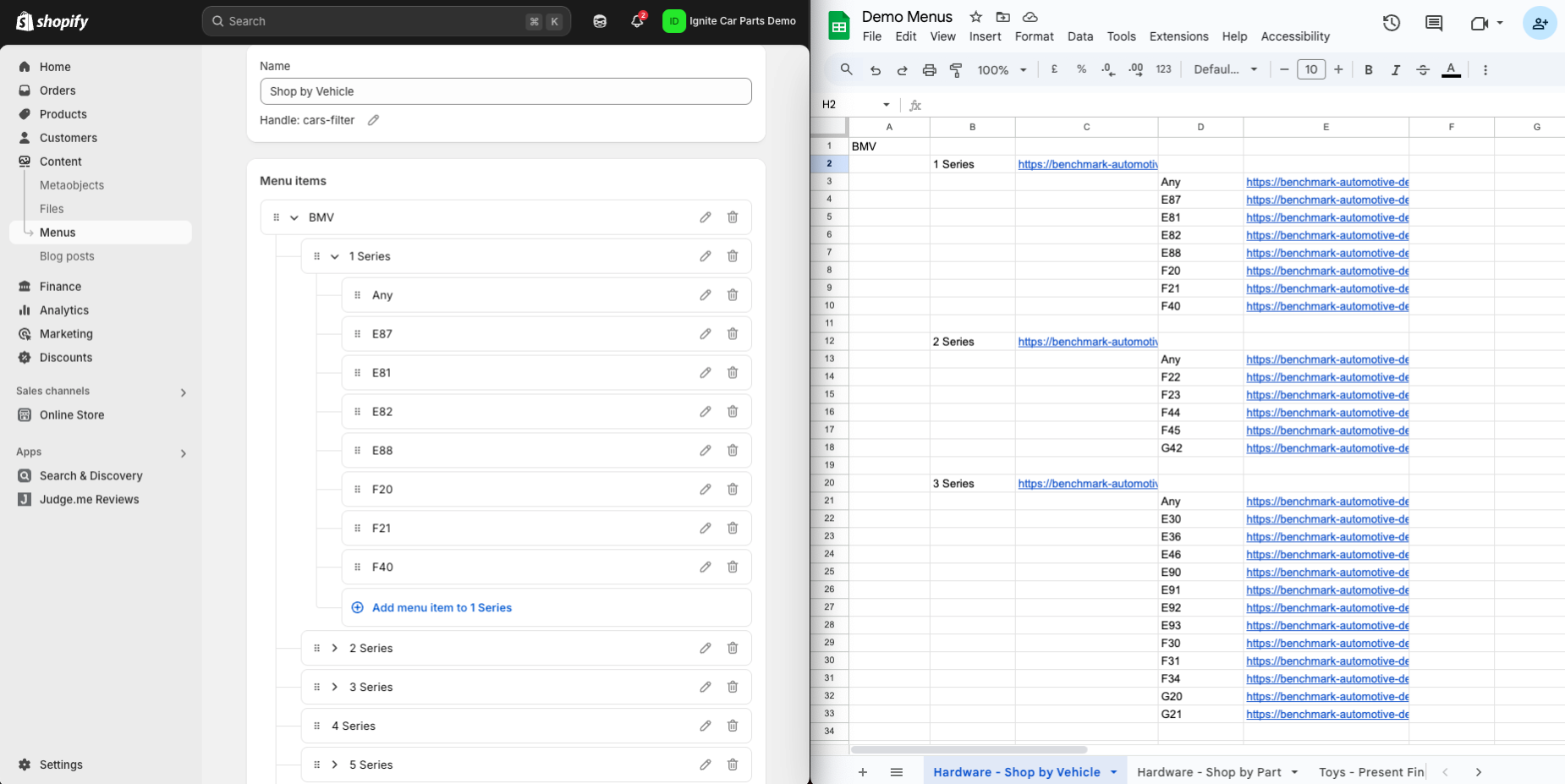
What it costs you:
- Time. A large catalog takes hours, not minutes. Plan the structure in a spreadsheet first, because a typo is much easier to fix there than in a menu with hundreds of items.
- Upkeep. The menu doesn’t change when your products do. Add a new model to the catalog, and you add it to the menu too.
- Three dropdowns at most, because Shopify menus go three levels deep. The collection version takes six.
- Link length. Shopify menu links can’t be longer than 255 characters. Delete empty price parameters such as
&filter.v.price.gte=&filter.v.price.lte=from copied links, and shorten long filter names or values. - Unique links. As sub-navigation, the block selects the menu item whose link matches the page. If two items share a link, it picks the first one, which may not be the one the customer chose.
To set it up, build the menu in Content > Menus, then add a Quick menu filter block to the Quick filter (YMM) section and choose the menu in Filter menu. To make customers keep choosing, set an item’s link to #, and the search button waits until they pick an option below it. Setting up the Quick menu filter walks through each step.
When a fitment app is the better call
The limits above are the usual reason stores turn to a fitment app. If every part fits a long, precise list of exact vehicles, an app that stores those combinations may suit you better.
An app works with any theme. It’s usually another subscription and another script on every page, though, and some apps keep your fitment data in their own system. That’s one more thing to keep in sync with your products. A developer can also build YMM search into your theme as custom code. It will fit perfectly, but the build costs money, and so does keeping it working each time the theme updates.
A theme with YMM built in costs nothing extra, and the fitment data stays in your own products. Alpha has it, and several car parts themes on the Theme Store list it too. Check how each one gets its data before you buy.
Before you go live
Pick a few real vehicles and search for them. If a common car returns nothing, it’s a data problem, not a design one.
Then look at a few settings that make the search easier to use:
- Turn on Show product count, so customers see
Focus (19)and know a search is worth it. - Turn on Show dropdown search box to add a search box to long dropdowns, by default those with more than 15 options, so nobody scrolls through 60 makes.
- In the Compatibility finder, Require every dropdown to be selected stops a make without a model from passing as a saved vehicle.
And leave one file alone. The dropdowns read their options from a small template in the theme code, templates/collection.filters.liquid. If a developer deletes it, the dropdowns stay empty.
The Quick filter guide, Compatibility finder guide and Table block guide list every setting. To see how YMM search fits into a whole parts store, see Alpha for car parts stores, or read the 5 best Shopify themes for car parts stores.
Questions
Can I add year, make and model search to Shopify without an app?
Yes, with a theme that has it built in. In Alpha, the Quick filter (YMM) section builds the dropdowns from your collection filters, so there’s no fitment app to pay for. The filters themselves come from Shopify’s free Search & Discovery app. Set up the Quick filter.
Where should fitment data live in Shopify?
In product metafields, one for each dropdown, such as make, model and year. If a part fits more than one vehicle, use a list metafield, so one product can hold several values.
How many dropdowns can YMM search have?
In Alpha, up to six with the Quick collection filter, such as make, model, year, generation, engine and trim. The Quick menu filter, which builds its dropdowns from a Shopify menu instead, has up to three.
Can customers save their vehicle?
Yes. Alpha’s My Garage, which the theme editor calls the Compatibility finder, lets customers save up to five vehicles without an account. Product pages and product cards then show whether a part fits. Set up the Compatibility finder.
Can Shopify link a year to a specific model in YMM search?
Not with its standard filters. Each metafield works on its own, so a part that fits a 2020 Model A and a 2021 Model B also shows up for a 2021 Model A. Use values that carry the combination, such as a generation with its years, or build the dropdowns from a menu with Alpha’s Quick menu filter. This is a Shopify limit, so it applies to every theme that uses Shopify’s filters. Set up the Quick menu filter.
Does YMM search work on collections with more than 5,000 products?
Not with Shopify’s filters. Shopify only shows filters on a collection or search with 5,000 products or fewer, so split bigger collections, such as by make or category, or use an app.
Where do customers land after a YMM search?
On a normal collection page with their choices applied as filters, such as /collections/all?filter.p.m.custom.make=Ford. They can change a filter, sort the results, or bookmark the page and come back to it.
Does YMM search only work for cars?
No. It works for any store where people shop by compatibility, such as phone cases by device, printer ink by printer, or bike parts by frame. The dropdowns show whatever your filters hold.
This page contains affiliate links to the Shopify Theme Store. If you buy a theme through one, we may earn a commission, whichever theme you choose.