How to add product structured data to Shopify for AI search
Most Shopify themes tell search engines your price and stock, then stop. Put your specs, materials, GTINs and return policy in the schema too, so AI assistants read exact facts.
 9 min read
Quick answer
To add product structured data to Shopify, store the details your theme leaves out, such as specifications, materials, model numbers and GTINs, in product metafields, show them on the page, and connect the same metafields to your theme’s schema. Most themes already cover the basics: name, price, images and stock. In Ignite, set the product schema to Theme - extendable and add the Structured product data section, which also takes your return policy. No app needed. Structured data won’t guarantee a spot in AI answers, but it gives search engines and AI assistants exact facts instead of guesses.
We make Ignite, so wherever this guide gets down to settings and clicks, they’re Ignite’s. The reasoning behind them applies to any theme or app.
What a machine sees on your product page
A shopper looks at a product page and sees a photo, a price and a buy button. A search engine sees code, and has to work out which number is the price. It could be the sale price, the old price or the price of a bundle. Structured data, also called schema markup, settles that. It’s a description of the product written for machines, in a standard format called JSON-LD, which Google recommends. Shoppers never see it.
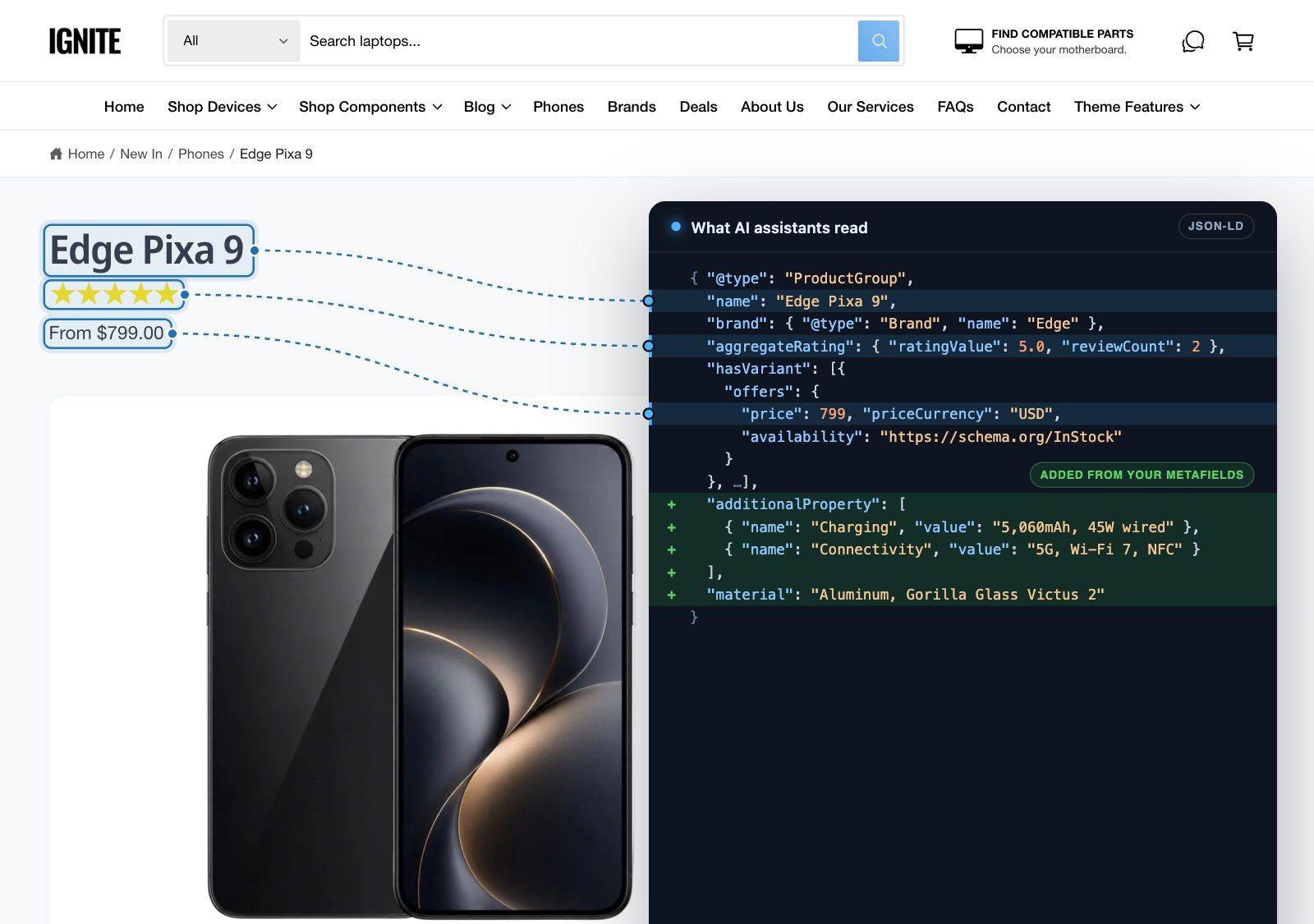
For a phone, that description says what you’d expect: this is a product, this is its brand and price, it’s in stock, and these are its specs. Below is a trimmed example of what Ignite writes for a phone. Each variant is its own Product with its own SKU, barcode and offer, and the group around the variants holds what they share.
{
  "@type": "ProductGroup",
  "name": "Edge Pixa 9",
  "brand": { "@type": "Brand", "name": "Edge" },
  "aggregateRating": { "@type": "AggregateRating", "ratingValue": 5.0, "reviewCount": 2 },
  "material": "Aluminum frame, Gorilla Glass Victus 2",
  "additionalProperty": [
    { "@type": "PropertyValue", "name": "Charging & power", "value": "5,060mAh, 45W wired, 23W Qi2 wireless" },
    { "@type": "PropertyValue", "name": "Connectivity", "value": "5G, Wi-Fi 7, Bluetooth 5.4, NFC" }
  ],
  "positiveNotes": {
    "@type": "ItemList",
    "itemListElement": [
      { "@type": "ListItem", "position": 1, "name": "Battery lasts two full days" }
    ]
  },
  "negativeNotes": {
    "@type": "ItemList",
    "itemListElement": [
      { "@type": "ListItem", "position": 1, "name": "No charger in the box" }
    ]
  },
  "hasVariant": [
    {
      "@type": "Product",
      "name": "Edge Pixa 9 - Pixa 9 / Midnight Black / 128 GB",
      "sku": "PX9-128-BLK",
      "gtin13": "0123456789012",
      "offers": {
        "@type": "Offer",
        "price": 799,
        "priceCurrency": "USD",
        "availability": "https://schema.org/InStock",
        "hasMerchantReturnPolicy": { "@id": "…#return-policy" }
      }
    }
  ]
}
Will it get you into AI answers?
Not by itself. Google says there’s no special structured data you need to add to appear in AI Overviews or AI Mode, and no AI-only files either. What it does ask is that your structured data matches the visible text on the page.
AI answers are assembled from facts. If someone asks “which 128GB phone under $700 has the biggest battery?”, the answer needs the storage, the price and the battery capacity in a form it can trust. A page that states them clearly, in the text and in the schema, is easier to quote.
One payoff is measurable. Product structured data makes your pages eligible for Google’s merchant listing results, which can show price, stock and return information right in search.
Shopify also has a route to AI shopping assistants that skips your page code entirely. Its Agentic Storefronts share your catalog with those assistants straight from your Shopify admin. It runs on the same good product data, such as clear titles, full descriptions and filled-in metafields, so this work feeds both routes.
What most Shopify schema leaves out
Your theme is probably writing some structured data already. Shopify’s free themes, Dawn and Horizon among them, use Shopify’s own structured_data filter. It describes each product, or a product group when there are variants, with its name, description, images, brand, category, price and stock. Many paid themes do the same, or write their own.
That’s a solid base, but it describes what every product has and stops before what makes yours different. Each row below is something you already know about your products, next to the schema.org property that would carry it:
| What you know | Schema.org property | Example |
|---|---|---|
| Specifications | additionalProperty | Display: 6.3-inch OLED |
| Material | material | Recycled aluminum |
| Model and manufacturer | model, manufacturer | PX9-128 |
| Where it’s made | countryOfOrigin | Germany |
| Barcode | gtin12, gtin13, gtin14 | 0123456789012 |
| Return policy | hasMerchantReturnPolicy | 30 days, free returns |
| Star ratings | aggregateRating | 4.7 from 212 reviews |
| Pros and cons | positiveNotes, negativeNotes | No charger in the box |
Who writes your schema?
Decide first where your product schema comes from, because it should come from exactly one place. If your theme and an app both write it, the page carries two descriptions of the same product, and they can disagree.
The usual candidates are Shopify’s filter, an app and your theme. An SEO app works with any theme, though it’s usually another subscription, and you have to switch off your theme’s own product schema when you install it. A theme you can extend costs nothing extra and builds the data from your own products.
Ignite puts that choice into one setting, Schema on product page and featured product section. Shopify uses Shopify’s filter, Theme uses Ignite’s own markup, and Theme - extendable adds whatever you describe with blocks on top of that. None writes no product schema, which is the one to pick if an app handles it.
You can also have a developer write the JSON-LD into your product template by hand. It can do exactly what you want, but one stray comma breaks the whole block. When we share a code snippet in support, it comes with a note: custom code isn’t supported by the theme, so keep good notes on the change, because it may need reapplying by hand after a theme update.
Start with the facts, not the code
Schema only repeats what the product page says, so most of the real work happens in your Shopify admin. Each product needs its own values, which means they belong in metafields rather than in the theme. A spec that only lives in the description, or in an image, can’t be fed to a schema property.
- Go to Settings > Metafields and metaobjects > Products.
- Add a definition for each fact you want to describe, such as
specs.display,specs.batteryorcustom.material. - Fill them in on each product. For a big catalog, Shopify’s bulk editor saves a lot of clicks.
- Enter each variant’s GTIN, UPC or EAN in its Barcode field. Ignite writes it into the schema for you.
Then put the same facts in front of shoppers. In Ignite, a Table block on the product page can pull each row from a metafield. The visible specs and the schema then read from the same field and can’t drift apart, which is what Google asks for. See the Table block.
Switch Ignite to extendable schema
In the theme editor, open Theme settings > SEO, GEO & Speed, set Schema on product page and featured product section to Theme - extendable, and click Save.
From then on, product schema comes from the Structured product data section. It writes everything the default does, plus whatever you add to it. The catch is that the section has to be on every product template. With Theme - extendable, a template without it has no product schema at all, which is why the setting shows a warning to that effect once you choose it.
Describe the product, block by block
Open a product template in the theme editor, click Add section and choose Structured product data. Shoppers never see it. What goes inside depends on the kind of fact.
For specs, add a Specification block per spec. Type its name, such as “Display”, then connect Value to the matching metafield with the database icon.
Some facts have a standard property of their own, and for those the Product attribute block is the better fit. It covers Material, Country of origin, Model, Manufacturer, Award, Slogan and Keywords. Search engines recognize these more reliably than a free-text spec, so use one wherever it fits.
Short plus and minus points, such as “Battery lasts two full days”, each get a Pro or con block. Include the cons. A balanced list tends to be trusted more, by people and by AI assistants, than one that’s all praise.
Turn on Show preview while editing to see the finished data in the editor, with a check that it reads back correctly. Save, then repeat on every other product template. A block with an empty value is left out, so a block wired to a metafield one product doesn’t have simply doesn’t appear for that product.
Say how returns work
The return policy lives in the same section. Fill in Country code(s) with the countries it covers, such as US or US, CA, and set Days to return. Tick Returns are free if you pay for return shipping.
Leaving the countries empty publishes no returns information at all, and a Days to return of 0 says returns aren’t accepted.
Google can also take a store-wide return policy from Merchant Center or your organization’s markup. If you’ve set one there, make sure the two agree, and that both match your policy page.
Check what Google reads
Paste a product page address into Google’s Rich Results Test. It shows what Google can read and whether the page is eligible for merchant listings. Then run the same page through the Schema Markup Validator at schema.org, which checks every property, not only the ones Google uses.
Expect warnings about missing optional fields. They’re normal, because Shopify doesn’t hold every piece of data a schema could describe. Errors are a different matter, and so are two Product items on one page, which means two sources are writing schema. Fix both.
Once one page passes, spot-check the rest of the setup. Every variant should have its barcode, every product template should have the section, and every fact in the schema should also be somewhere a shopper can read it.
Where structured data stops
It makes pages eligible for richer results and easier to understand. It doesn’t guarantee anything. Search engines and AI assistants still decide what to show.
Pros and cons are a good example. Google only shows the pros and cons appearance for editorial product reviews, not on pages where you sell the product. The data is still valid, and AI assistants and other tools can read it.
Star ratings come with a rule: they must come from reviews customers leave on your own store. Reviews collected somewhere else, such as on a marketplace, shouldn’t be marked up as your product’s rating. A question we get a lot in support is how to add product reviews. The answer is that reviews aren’t built into Ignite, or into any Shopify theme. They come from a reviews app, and Judge.me is a popular free one that works smoothly with Ignite. For the schema, Ignite reads ratings from Shopify’s standard review metafields, which most reviews apps fill in.
Very large products are the other limit. Every variant gets its own entry, so for products with more than 250 variants Ignite recommends the Shopify option, which uses Shopify’s own filter instead. That option doesn’t include the extra blocks.
Above all, the schema has to match the page. Don’t describe facts in the schema that shoppers can’t see.
The SEO and AI search guide lists every structured data setting in Ignite. For a page that puts those specs side by side, read how to add product comparison to your Shopify store.
Questions
Does Shopify add product structured data automatically?
Most current themes do. Shopify’s free themes, such as Dawn and Horizon, use Shopify’s structured_data filter, which describes the product’s name, description, images, brand, price and stock. It doesn’t include your specifications, materials, pros and cons or return policy. Check your own theme with Google’s Rich Results Test.
Do I need structured data to appear in Google AI Overviews or AI Mode?
No. Google says there’s no special structured data you need to add for its AI features. Structured data still helps machines read your product facts without guessing, and Google asks that it match what’s visible on the page.
Can I add product schema to Shopify without an app?
Yes, with a theme that lets you extend it. In Ignite, set Schema on product page and featured product section to Theme - extendable, add the Structured product data section to your product templates, and add blocks for specifications, attributes, and pros and cons. Set up structured data in Ignite.
Will pros and cons in my product schema show in Google results?
Not on a product page you sell from. Google only shows the pros and cons appearance for editorial product reviews. The data is still valid, and AI assistants and other tools can read it.
Can I add star ratings to my Shopify product schema?
Yes, for reviews customers leave on your own store. Ignite reads ratings from Shopify’s standard review metafields, which most reviews apps fill in. Don’t mark up ratings collected somewhere else.
How do I add a GTIN to Shopify product schema?
Enter it in the variant’s Barcode field in your Shopify admin. Ignite writes a 12-, 13- or 14-digit barcode as gtin12, gtin13 or gtin14 for that variant.
How do I check my Shopify product schema?
Paste a product page address into Google’s Rich Results Test, then check it again in the Schema Markup Validator. Warnings about missing optional fields are normal. Errors and duplicate Product items need fixing.
What happens if my theme and an app both add product schema?
The page ends up with two descriptions of the same product, which can disagree. Pick one source. In Ignite, set the product schema to None if an app handles it.
This page contains affiliate links to the Shopify Theme Store. If you buy a theme through one, we may earn a commission, whichever theme you choose.