
Breadcrumbs
Breadcrumbs help customers understand where they are in your store by showing the page hierarchy at a glance. They make it easy to jump back to broader categories (like a collection or parent page), which can improve navigation – especially on larger catalogues.
Breadcrumbs can be enabled/disabled on various templates by showing or hiding the “Breadcrumb” section on those templates, i.e.:
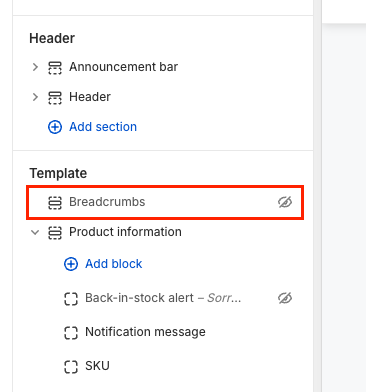
Breadcrumbs can show in the following places:
- Products
- Articles
- Pagess
Showing a product’s collection in breadcrumbs
If a customer visits a product from a collection, the theme can display that collection in the breadcrumb trail.

To enable this, go to Theme Settings > Product cards > Include collection in product link.
When this setting is on, the collection is added to the product URL. That gives the theme enough context to show the correct collection in the breadcrumb – so if a product is opened from a collection page, the breadcrumb should reflect that path.
Note: simply refreshing a product page won’t change the breadcrumb. After enabling the setting, you’ll need to open the product by clicking through from the relevant collection page.
Custom breadcrumbs per product (v2.5.0+)
NOTE: This is only available from v2.5.0 onwards, so you may need to update your theme to access it.
If you want full control over the breadcrumb trail shown on a specific product, you can define custom breadcrumbs using a product metafield.
- In your Shopify admin, go to Settings > Metafields and metaobjects > Products.
- Add definition and create a metafield with:
- Name: Breadcrumbs (or, ensure the namespace and key is custom.breadcrumbs)
- Type: Collection > List of collections
Your metafield definition should look like this: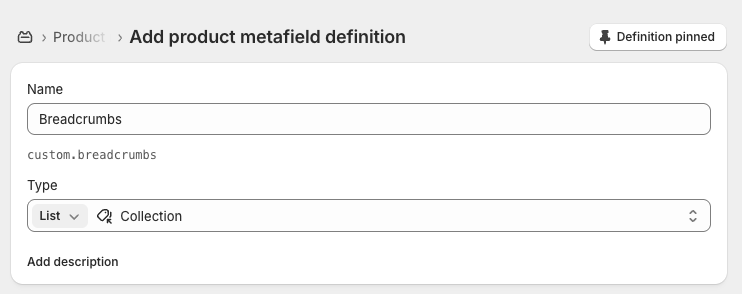
- Save, then open a product and add one or more collections to this metafield in the order you want them to appear as breadcrumbs.
Once set, the theme will use the collections you’ve added to custom.breadcrumbs as the breadcrumb trail for that product.
For example, if the metafield for a particular product is set to this:

The breadcrumbs shown on the storefront for this particular product will be:

Note: When a product has custom breadcrumbs enabled, the collection the customer clicked through from will not be shown in the breadcrumb trail.