
Quick filter (YMM)
The Quick filter section provides a quick and convenient way for your customers to find collections or products to purchase. As well as the Quick filter section, there are also Quick filter blocks within these sections: Rich text, Image with text, Video banner, Video with text and Collection banner.

This guide assumes that your products already have metafields containing relevant information (such as Make, Model etc), and that filters for these are already set up using the free Shopify Search & Discovery app.
Quick collection filter block
NOTE: This block is available from v2.4.0 onwards, so you may need to update your theme to access it.
This block lets you generate filter dropdowns directly from your collection filters as defined in the free Shopify Search & Discovery app. It supports up to six dropdowns, is fast to configure, and can only link to collection pages.
After setting up your filters in Search & Discovery, choose the collection you want to filter from in the block’s first setting.
-
If you leave this blank and the block is placed on a collection page, it will automatically use that collection.
-
If you leave it blank and the block is not on a collection page, it will default to the “all” collection.
Next, enter the filter names you want to expose in each dropdown, e.g.
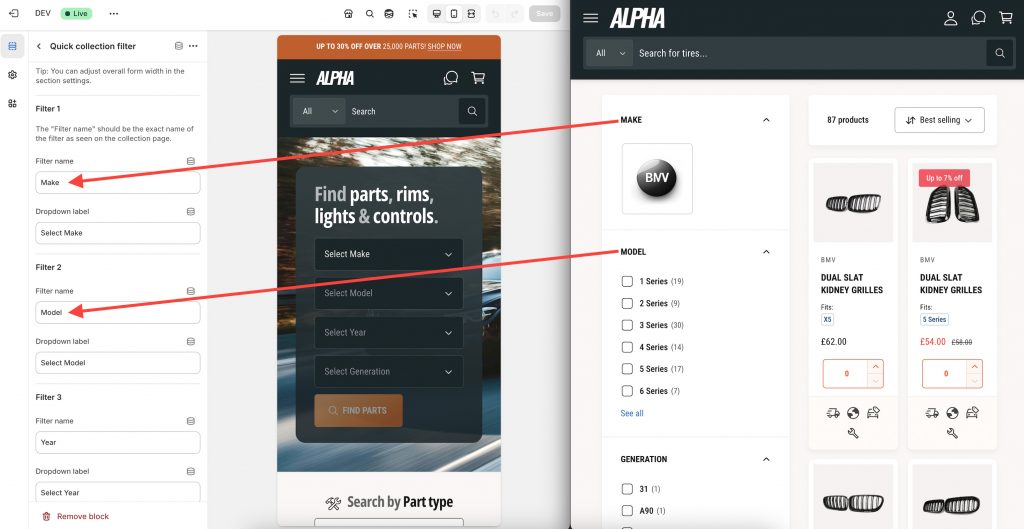
The theme will automatically populate the options based on the filters available. As customers make selections, each subsequent dropdown updates in real time to show only the remaining valid options.
Quick filter/Quick menu filter block
NOTE: In v2.4.0, the “Quick filter” block was renamed to “Quick menu filter”.
This block powers dropdown filters using Shopify menus rather than collection filters. Use it if you need full manual control over the dropdown options or if you want to send customers to pages other than collections. It requires more setup than the Quick collection filter and supports a maximum of three dropdowns, matching Shopify’s menu nesting limits.
While the Quick filter can be used for any type of product, this guide focuses on the most complex use case: building a multi-step filtering system for a car parts store.
This block is powered by the standard Shopify menus in the admin area in Content > Menus. In order to set up this section, a menu structure firstly needs to be built to the desired hierarchy to filter your products. For example, you want customers to select BMW before selecting ‘2 Series’ – so this hierarchy needs to be reflected in the menu structure.
Using the Alpha preset as an example, the following spreadsheet outlines how we planned out our menu structure: https://docs.google.com/spreadsheets/d/1PjsfzOOfz2LvlaMNli8JOQyMHwPVpaYTEk7vM1OVXjs/edit?usp=sharing
The side-by-side screenshot below indicates how this is built out, and how the Shopify menu maps to the spreadsheet:
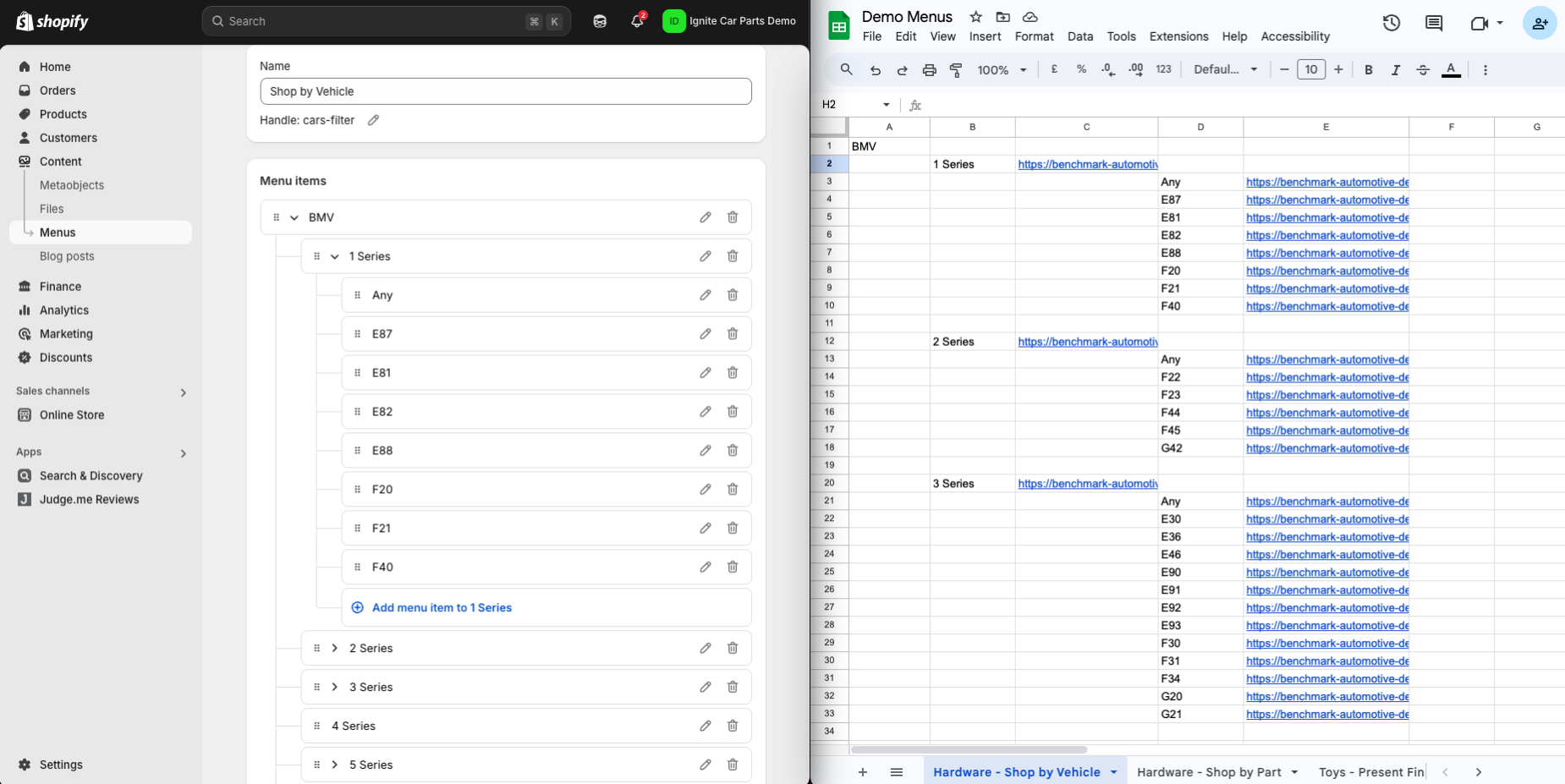
The top-level links (e.g. BMV) go directly to the BMV collection, i.e. https://benchmark-automotive-demo.myshopify.com/collections/bmv
The second level (BMV > 1 Series) goes to a filter of this collection, e.g. https://benchmark-automotive-demo.myshopify.com/collections/bmv?filter.p.m.custom.model=1+Series – which is the same link you would get if you filtered the BMV collection by a Model of ‘1 Series’.
The third level (e.g. BMV > 1 Series > E87) again, is the link that results when you filter the BMV collection by that Make and Model, ie https://benchmark-automotive-demo.myshopify.com/collections/bmv?filter.p.m.custom.model=1+Series&filter.p.m.custom.generation=E87&filter.v.price.gte=&filter.v.price.lte=
To build out the spreadsheet (and then the menu), it’s a case of repeating this process until the menu is sufficiently built out to reflect the desired hierarchy. This process takes a while, so we recommend that you use a spreadsheet and get the data correct in that, before proceeding to map this to a Shopify menu.
Note, the URLs of Shopify menus have a character limit of 255, so if your filter names or make/model names may need to be shortened if they are particularly long.
Using Quick filter as sub-navigation
Once a customer has used the Quick filter block created in the previous sections, they will be taken to the resulting collection page. The resulting page can also have a Quick filter section added to it, and can point to the same menu. If doing this, you can turn on the setting highlighted below:
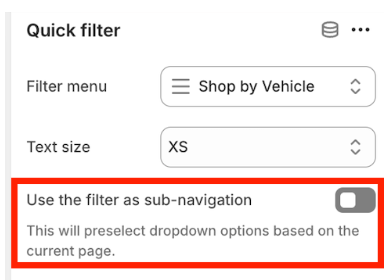
When enabled, the Quick filter will attempt to select the first combination of suitable dropdown options for the current page. Note, if the quick filter menu contains duplicate entries, the first one will be selected, which may or may not be the one that the customer clicked to get to the page. We therefore recommend the quick filter menu contains no duplicates if using this setting.